signal source / tradingview

Your TradingView alerts, traded the moment they fire

Point a TradingView alert at your bot's webhook. The alert says buy or sell; your bot adds the size, the exits and its checks, then trades the broker you connected.


Indicator or strategy alerts
Any broker you connect
Every alert logged with its reason
TradingView alert
Webhook
Webhook URL
…/trading-view/•••••
Message
{
  "symbol": "{{ticker}}",
  "side": "BUY"
}
Received
Read
Checked
Trader Frame
Bybit-BTC
BTCUSDT perpetual
Traded
Gold-Miner
XAUUSD · MetaTrader 5
Traded
ES-Breakout
ES · Interactive Brokers
Traded
before you start

Three things, and two of them live on TradingView

TradingView decides when an alert fires. Trader Frame decides what the alert turns into. Both halves have to be ready.

A paid TradingView plan

TradingView sends webhooks on its paid plans only. The Basic plan cannot.

Two-factor sign-in on TradingView

TradingView only allows webhook alerts once two-factor authentication is on in your account.

A bot with a broker

Connect your broker, then build a bot with its market, size and exits. The alert only picks the direction.

anatomy of an alert

Two fields. That is the whole message.

1
{
2
"symbol": "{{ticker}}",
the market on your chart
3
"side": "BUY"
buy or sell
4
}

side takes buy or sell in any case. A strategy alert sends TradingView's own buy or sell through {{strategy.order.action}}. Extra fields are kept with the signal but do not change the trade.

what the bot adds

Market

The symbol the bot trades, checked against the alert

Size

Margin and leverage, lots, or a stake

Exits

Take profit, stop loss, trailing or recovery

Checks

Trading hours, filters, news and plan limits

Same wire, other sources:
Telegram
Discord
MetaTrader
Copy Trader
Trade Agent
step by step

From a TradingView chart to a bot that trades it

Steps 1 to 3 and 5 to 6 happen in Trader Frame. Step 4 happens in TradingView, with the bot's panel open beside it.

1
in Trader Frame

Add Trading View to your bot

  • Open your bot. With no source yet, Signal sources shows Add a signal source: press it.
  • Pick Trading View. It fills the empty slot.
  • The Trading View panel opens with this bot's own webhook.

Already added? Click the Trading View node on the bot to reopen the panel.
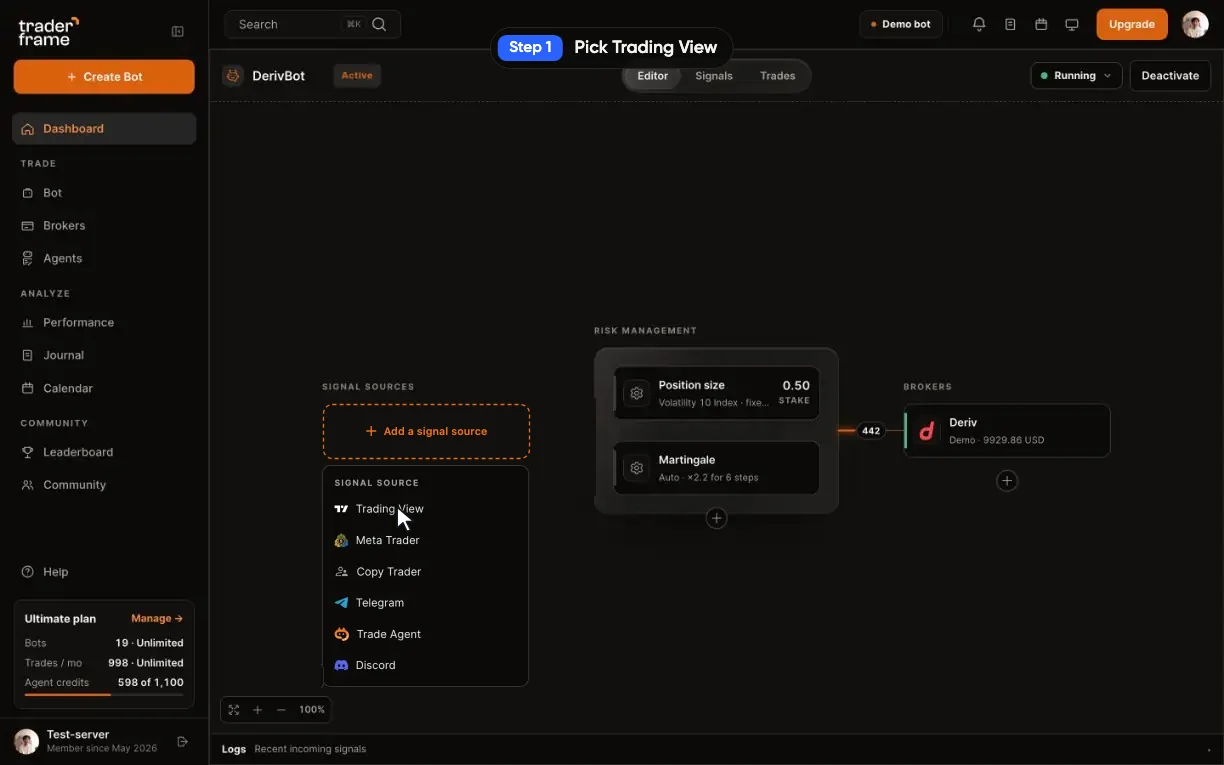
A bot with no signal source: pressing Add a signal source, picking Trading View, the node filling in and the Trading View panel opening
2
in Trader Frame

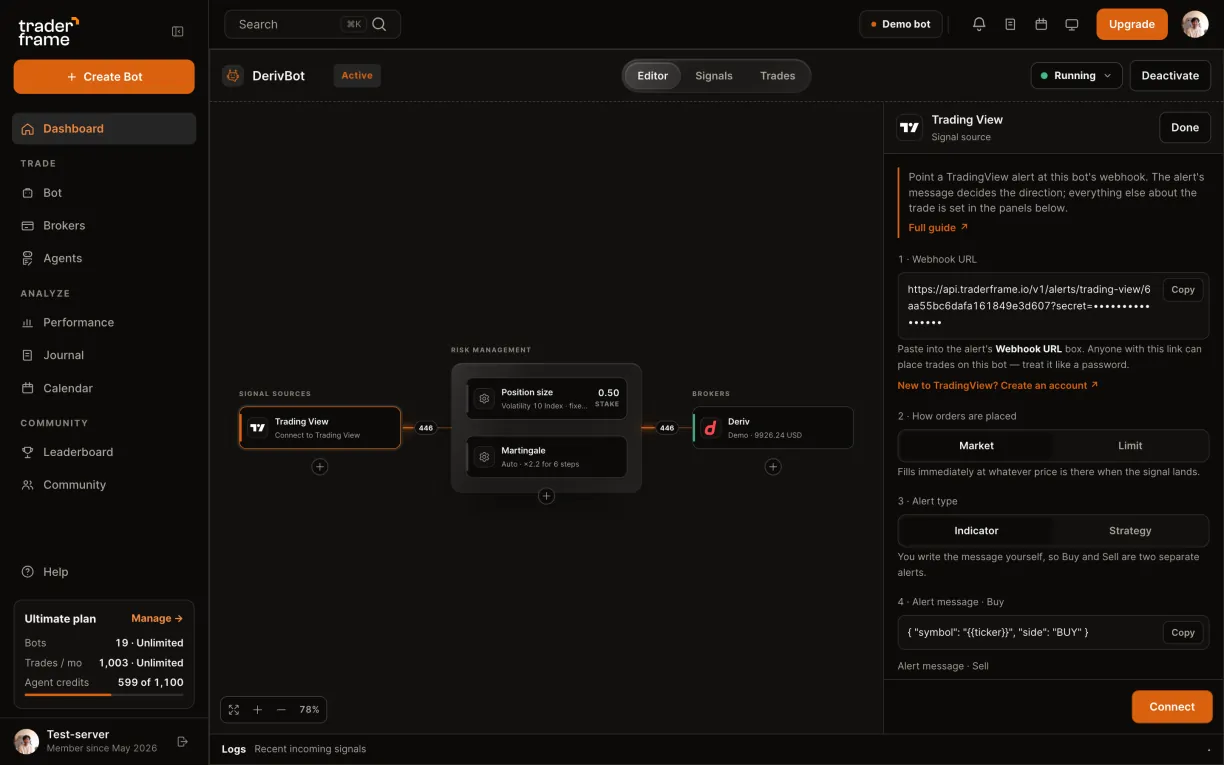
Copy the webhook URL

  • Under 1 · Webhook URL, press Copy.
  • The link ends with this bot's secret, so it only ever trades this bot.
Anyone with this link can place trades on this bot. Keep it out of screenshots, shared charts and published scripts.
The webhook URL in the Trading View panel, with its secret masked, and the Copy button
3
in Trader Frame

Copy the alert message

  • Under 3 · Alert type, pick Indicator or Strategy.
  • Indicator: copy the Buy message and the Sell message. Each becomes its own alert.
  • Strategy: copy the one message. TradingView writes buy or sell into it each time it fires.

Paste the message exactly as copied. It has to stay valid JSON: a message TradingView sends as plain text is refused.
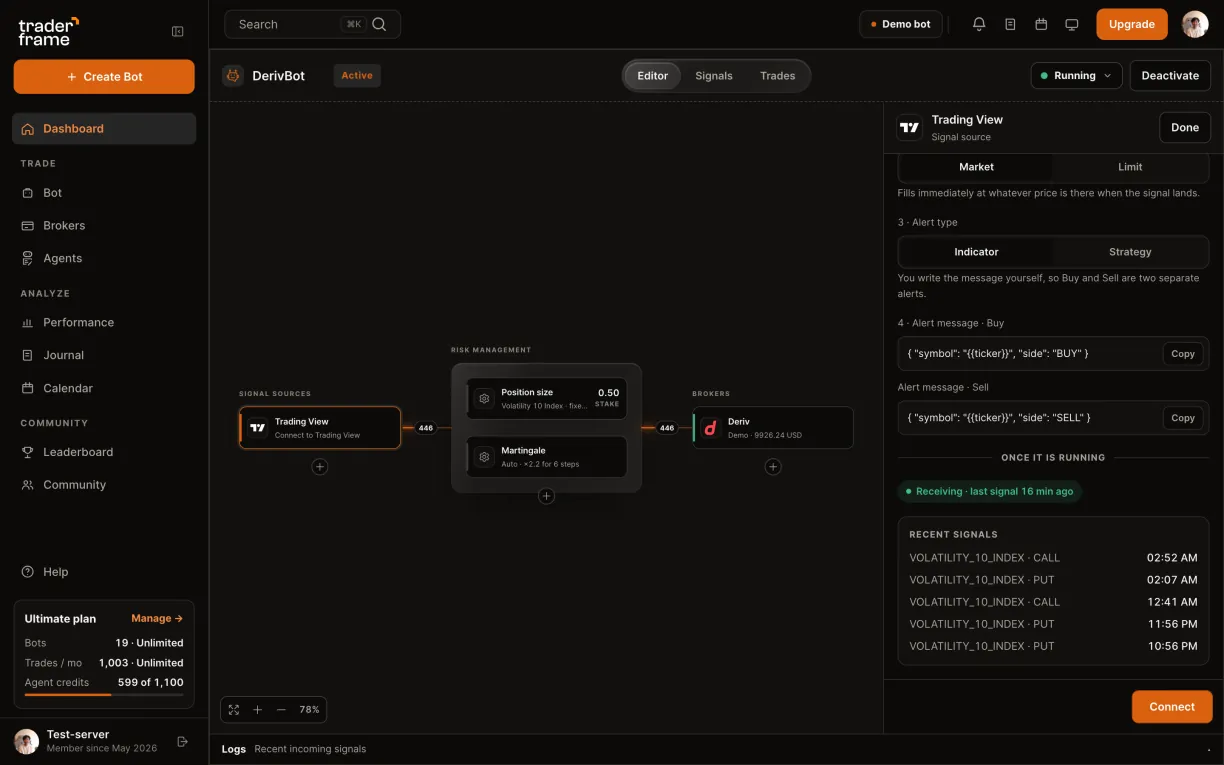
Copying the Buy and Sell messages for an indicator, then switching to Strategy and its single message
4
in TradingView

Create the alert on your chart

  • Click Create alert, the alarm clock in the chart's top toolbar.
  • Under Condition, pick your strategy, or your indicator's buy signal.
  • Open Message: name the alert, paste the JSON, press Apply.
  • Open Notifications: tick Webhook URL, paste your webhook, press Apply.
  • Press Create. Done. For an indicator, repeat with the sell condition and the Sell message.

Use the chart of the market the bot trades. The alert sends that chart's symbol, and the bot checks it.
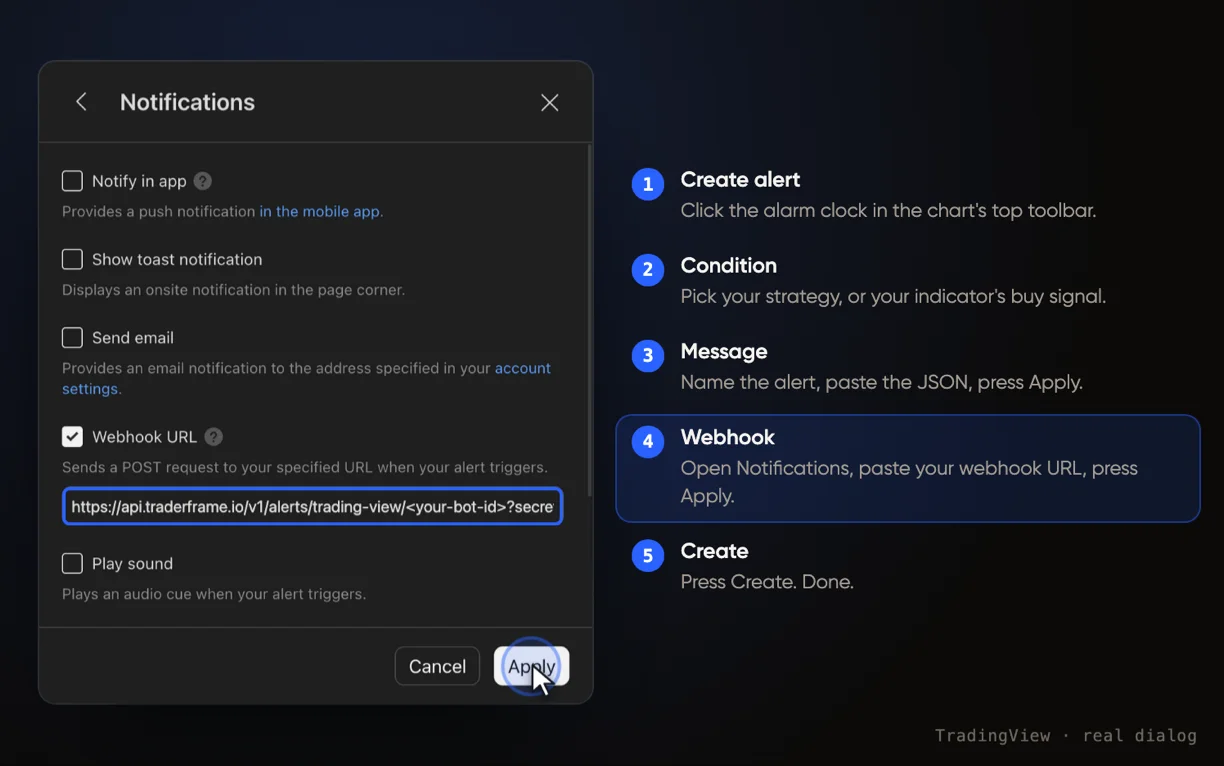
TradingView's alert flow: Create alert in the toolbar, the strategy picked as the condition, the alert named and the message pasted, the webhook URL pasted under Notifications, then Create
5
in Trader Frame

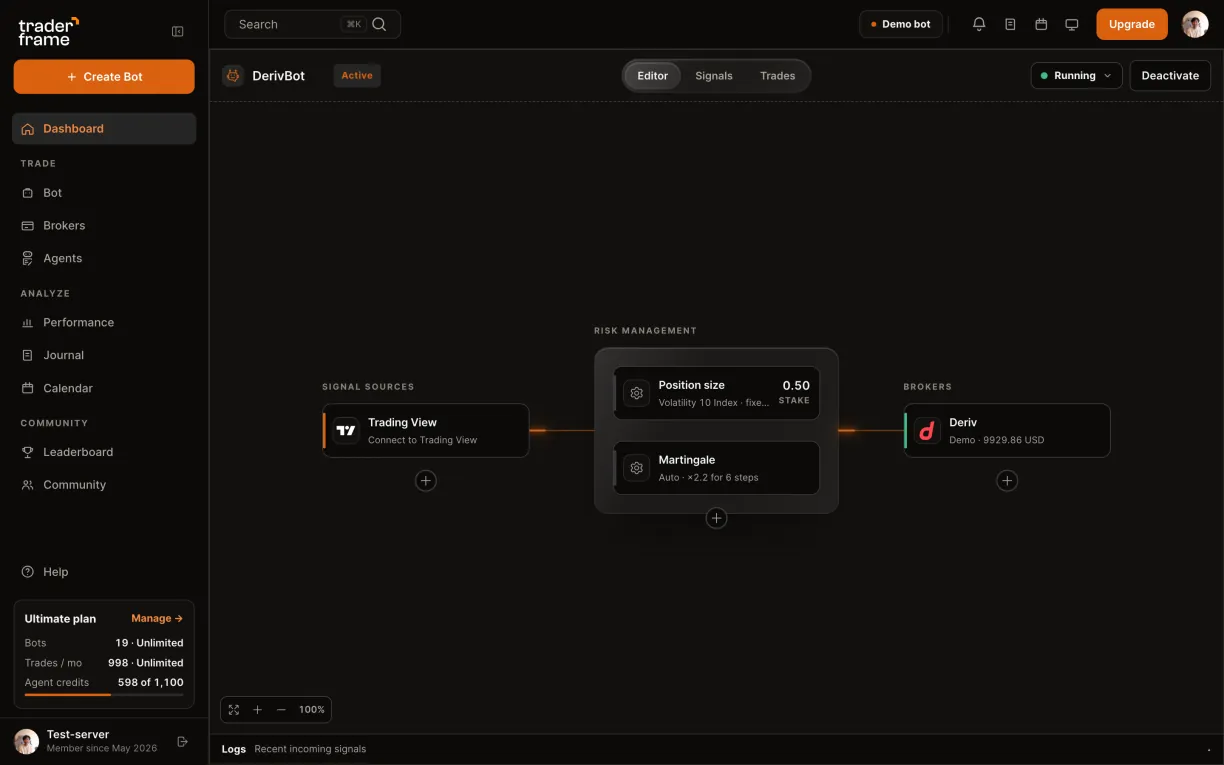
Connect and switch the bot on

  • Back in the panel, press Connect.
  • Connecting leaves the bot in Draft: press Activate.
An alert that reaches a bot that is not active is refused, and it does not appear in Signals.
Pressing Connect in the Trading View panel, then Activate on the bot
6
in Trader Frame

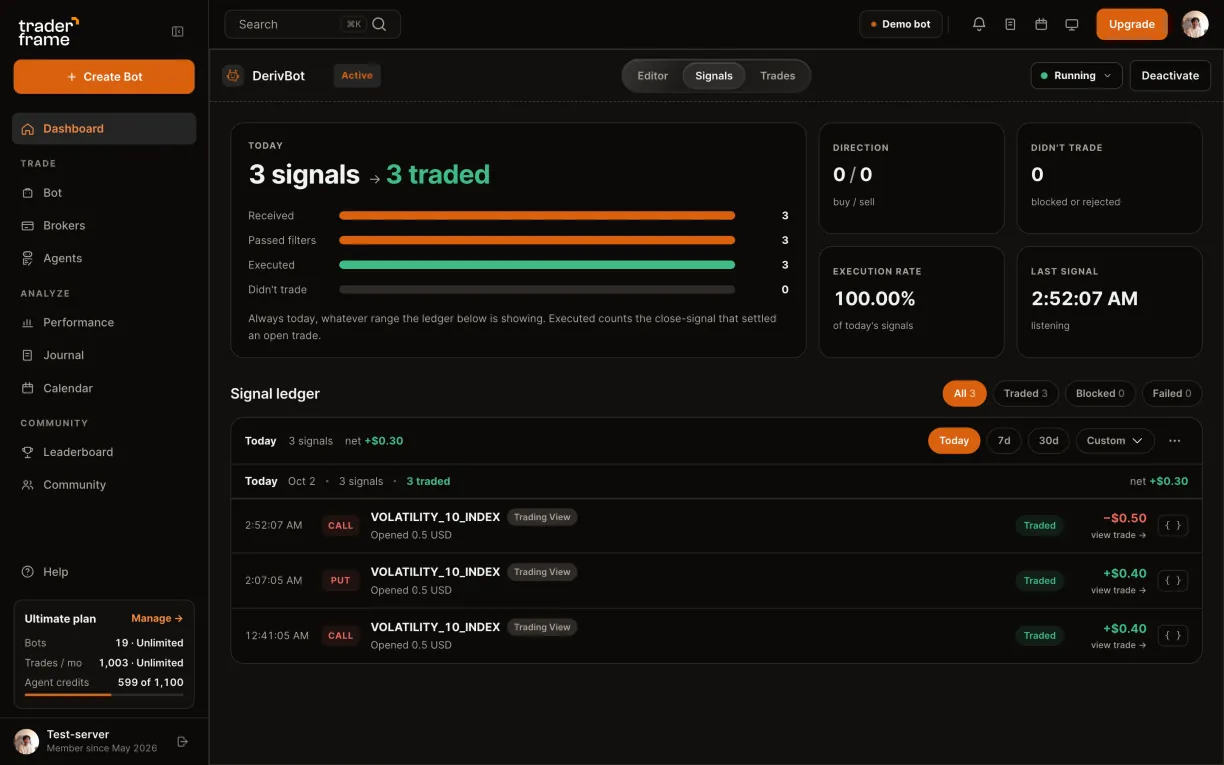
Watch the Signals tab

  • Open the bot's Signals tab.
  • Every alert that arrives is listed: Traded, Blocked or Failed, with the reason.
  • The { } button shows the alert exactly as TradingView sent it.
The Signals tab: three Trading View alerts today, all traded, and the ledger filters
indicator or strategy

Pick the alert type that matches your script

The panel builds the message for either. Choose by what is on your chart, not by what feels simpler.

Indicator
Strategy
On your chart
An indicator with buy and sell conditions
A Pine strategy that places orders
Alerts to make
Two: one for buy, one for sell
One, on the strategy's orders
Who writes the side
You: "BUY" or "SELL"
TradingView: {{strategy.order.action}}
Best for
Signals you already trust from a script
A strategy you back tested on the chart
symbols

The alert names the chart; the bot checks it

{{ticker}} sends the chart's symbol. Exchange prefixes and TradingView's perpetual suffix are ignored, so the usual chart names match. A different market is refused.

Alert sends
Bot trades
Result
Why
BINANCE:BTCUSDT.P
BTCUSDT
Matches
The exchange and the .P perpetual suffix are dropped
OANDA:XAUUSD
XAUUSD.sc
Matches
MetaTrader 5 symbols match on the core name, whatever your broker adds
CME_MINI:MNQ1!
MNQ
Matches
Futures continuous charts match the product
ETHUSDT
BTCUSDT
Symbol mismatch
A different market: the signal is refused and logged
troubleshooting

An alert fired but nothing traded

Start in the bot's Signals tab. A row there means the alert arrived; its reason says what stopped it.

What you see
Why
What to do
No row in Signals at all
The alert never reached Trader Frame: no paid plan or two-factor sign-in on TradingView, Webhook URL not ticked, or the link was cut short. A bot that is not active also refuses without a row.
Check the alert's Notifications and the full link, then make sure the bot is Active.
Signal provider 'trading-view' is not connected to this bot
The panel was closed with Done instead of Connect.
Open the panel again and press Connect.
Missing required fields: symbol, side
The message lost a field, or was not valid JSON.
Copy the message from the panel again and paste it unchanged.
Symbol mismatch
The alert came from a chart of another market.
Make the alert on the chart of the market the bot trades.
Trade Already Active
The bot already holds a trade. An opposite signal closes a crypto trade; a same-side one is skipped.
Nothing to fix: this is the bot protecting an open position.
faq

TradingView questions

Do I need a paid TradingView plan?

Yes. TradingView sends webhooks on its paid plans only, and only after you turn on two-factor authentication in your TradingView account.

Can one alert trade several bots?

Each bot has its own webhook, and an alert sends to one. Make one alert per bot.

Can an alert close a trade?

There is no close message. On crypto bots, and MetaTrader 5 bots set to close on signal, an opposite alert closes the open trade. Otherwise the bot's own exits close it.

Can the alert set the size or the stop?

No. Size, leverage and exits always come from the bot, so a strategy's quantity in TradingView is ignored.

What does the alert cost on Trader Frame?

Receiving TradingView alerts is on every plan, Free included. Each trade the bot places counts toward your plan's monthly trades.

Which brokers can a TradingView bot trade?

Any broker you connect: Bybit, OKX, Bitget, Hyperliquid, Binance, KuCoin, MetaTrader 5, Deriv and Interactive Brokers.

next alert

Your next alert could be a trade

Start on a demo account. When the bot has earned it, point it at your real one: the TradingView alert stays the same.