OKX partner integration · USDT perpetuals

Automate Crypto Futures Trading on OKX

Connect OKX in one click, demo or real: you approve it on OKX, with no API key to paste. Then build a bot that trades USDT perpetuals from your signals, with take profit, stop loss and OKX’s own trailing order. Six steps, no code.
One-click demo and real
No API key to paste
OKX trailing stop
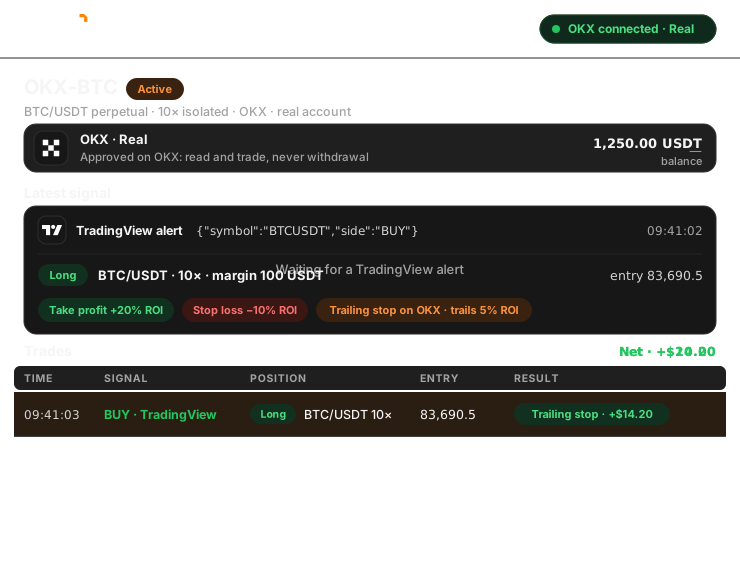
An OKX account connecting to Trader Frame in one click, a TradingView buy alert opening a ten times long on BTC/USDT with take profit, stop loss and an OKX trailing order, and the trade landing in the list
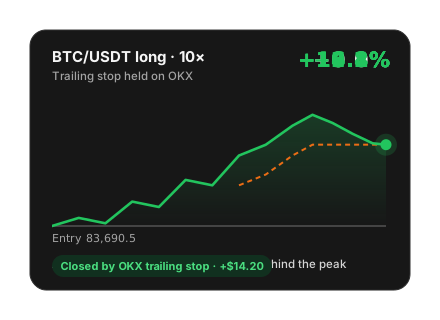
The BTC/USDT long rising while OKX's trailing order steps up behind it, then closing the trade in profit

Before you start

What you need, and nothing to install

OKX connects over the internet, straight from Trader Frame. There is no app on your computer, and Trader Frame never sees your OKX password.
An OKX account

Demo and real both connect through OKX’s own approval. Practise on demo first.
USDT for margin

In the account you connect. A demo account trades virtual funds.
A signal source

TradingView alerts, Telegram, Discord, Copy Trader, or Pip, the AI Trade Agent.
Read and trade only

Trader Frame never asks for withdrawal permission, on demo or real.

What happens to every signal
Your signal
Says buy or sell, and the pair
Trader Frame
Size, leverage and exits from your bot
OKX
OKX
Order, stop, target and trail placed together

Your bot decides the size, the leverage and the exits. OKX holds the take profit, stop loss and trailing stop with the position.

Step by step

From an OKX account to a bot trading crypto futures

Practise on demo first if you like: steps 4 to 6 are the same for demo and real.

01
Step 1 of 6

Open OKX in the connect sheet

  • Open Brokers and press + Connect broker.
  • Pick the Crypto tab, then OKX, and press Continue.

The sheet asks which account to connect: Demo, for practice with virtual funds, or Real.
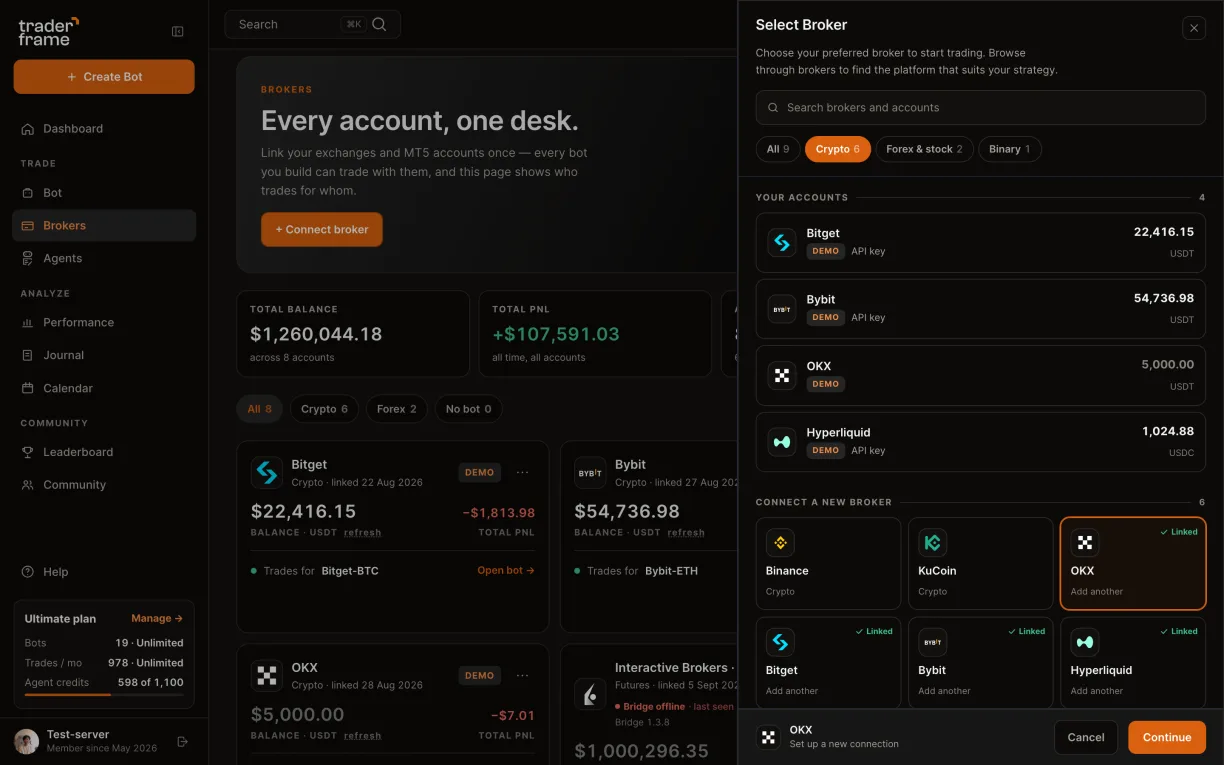
Opening the connect sheet from the Brokers page, picking the Crypto tab and OKX, and pressing Continue
02
Step 2 of 6

Practise on an OKX demo account

  • Choose Demo and press Connect.
  • OKX opens and asks you to sign in.
  • You approve read and trade access, never withdrawal.
  • OKX returns you here and the demo account appears in your list.

There is no API key to paste: OKX approves the demo account on its own site, and Trader Frame never sees your password.
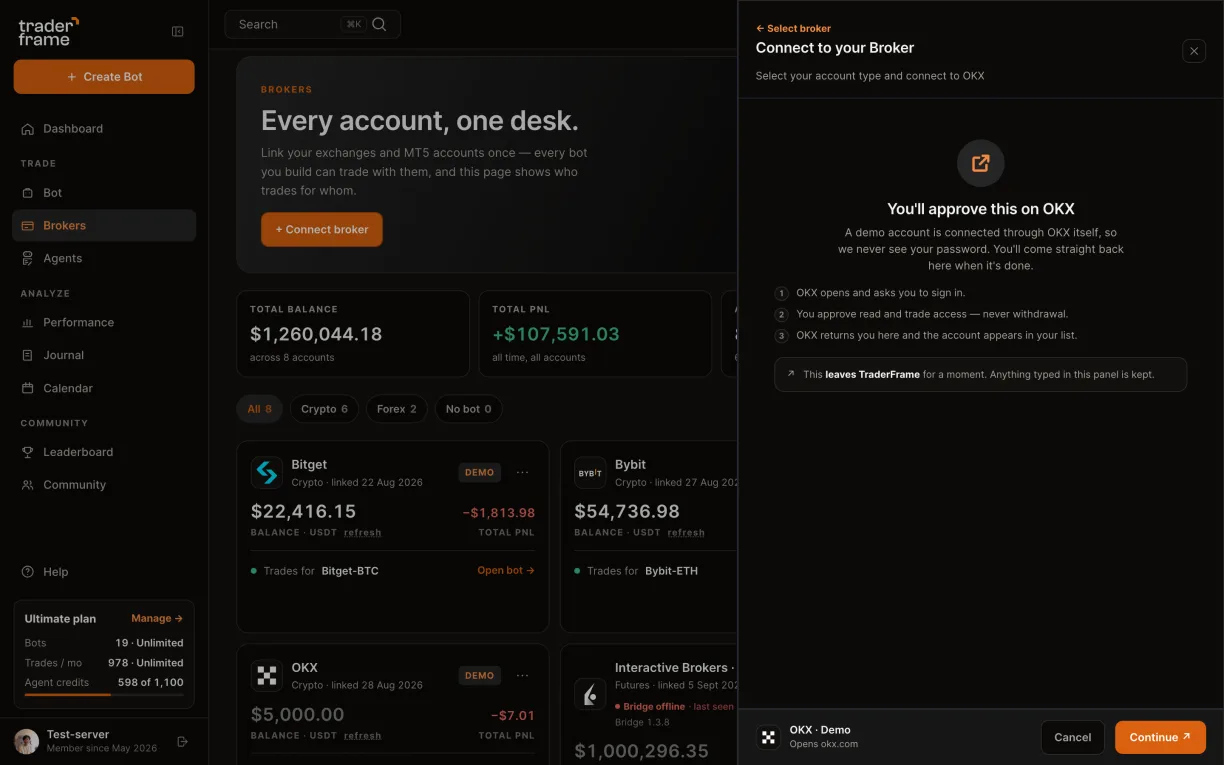
Choosing Demo, pressing Connect, the notice explaining the approval on OKX, and the OKX demo account in the list
03
Step 3 of 6

Connect your real account in one click

  • Choose Real and press Connect.
  • OKX opens and asks you to sign in.
  • You approve read and trade access, never withdrawal.
  • OKX returns you here and the real account sits beside your demo one.

Demo and real are separate approvals, so each bot can point at either account.
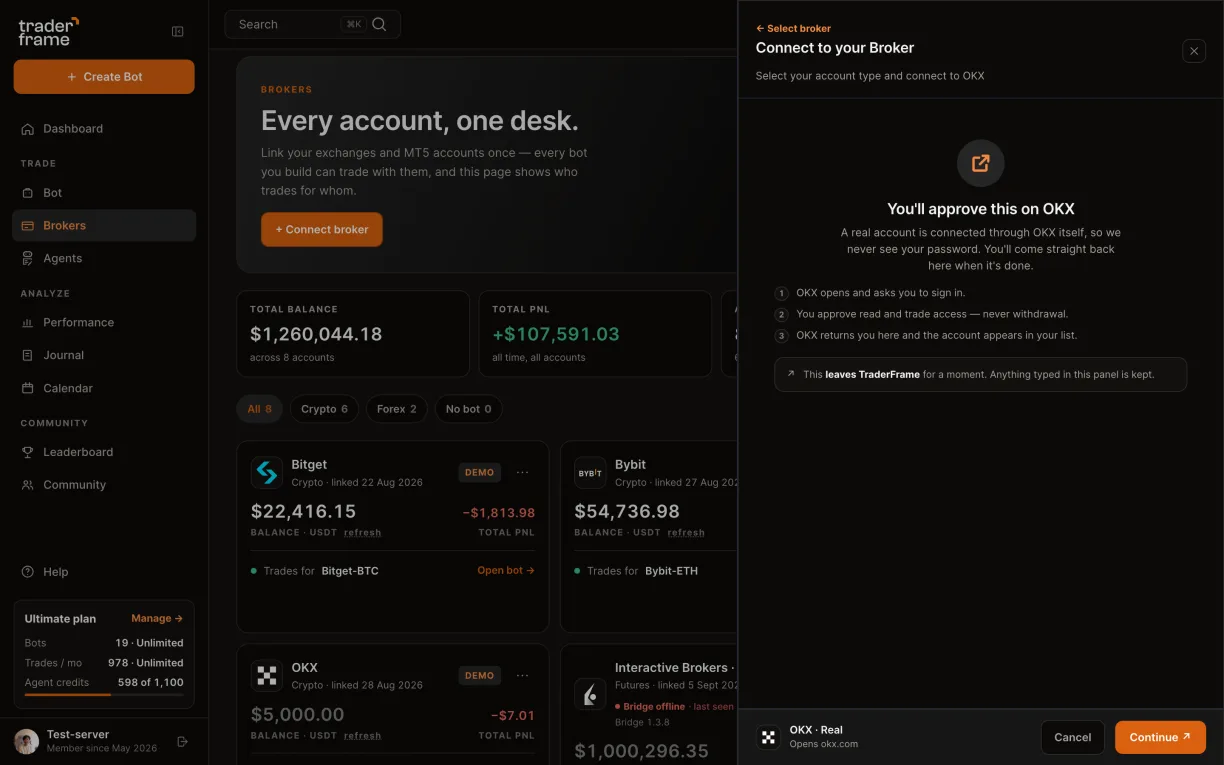
Choosing Real, pressing Connect, and the notice explaining that the account is approved on OKX itself
04
Step 4 of 6

Build a crypto futures bot on OKX

  • Create a bot and pick your OKX account under Brokers.
  • In Position size, pick the trading pair, for example XRP/USDT.
  • Set the trade size: margin, order size or coins.
  • Choose the leverage and the margin mode, Cross or Isolated.

The panel shows what each trade commits: margin, notional at your leverage and the share of your balance.
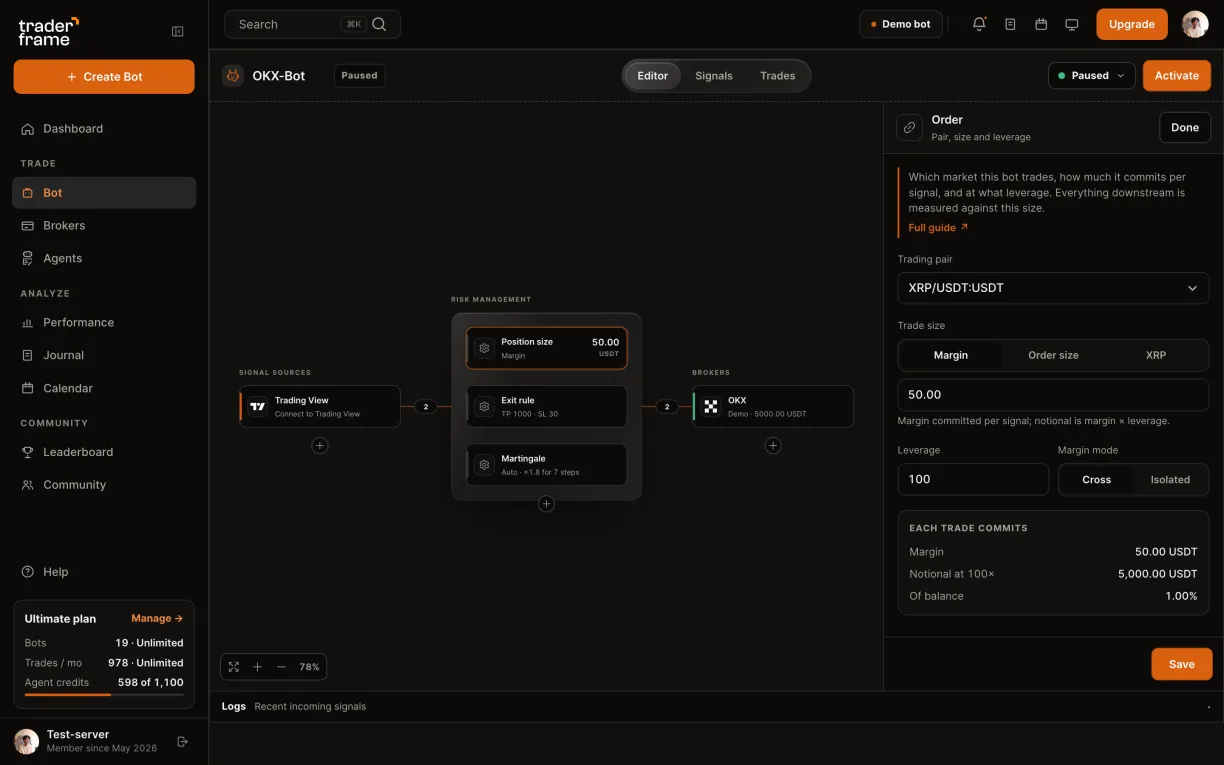
Picking the OKX account for a bot, then the XRP/USDT pair, trade size, leverage and margin mode in the Position size panel
05
Step 5 of 6

Set the exits

  • In Exit rule, choose how positions close: Auto close at your target or stop, or follow the signal.
  • Set take profit and stop loss in ROI %.
  • Turn on the trailing stop: Continuous runs as OKX’s own trailing order.
  • Check the position preview: prices, fees and the result at take profit and stop loss.
  • Press Save.

ROI % is measured on the margin, so leverage sets how far the price moves for each percent.
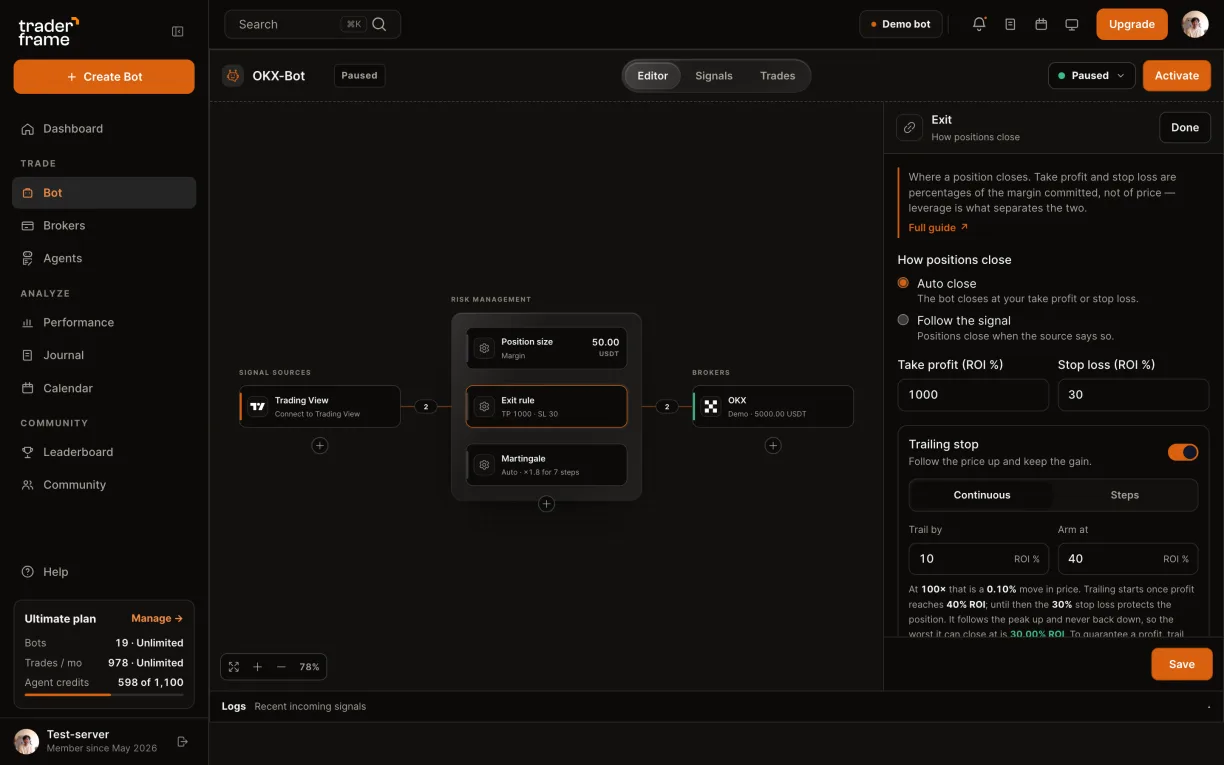
The Exit rule panel: auto close, take profit and stop loss in ROI %, a continuous trailing stop, the position preview, then Save
06
Step 6 of 6

Add a signal and switch it on

  • Under Signal sources, add Trading View.
  • Press Activate.

Open the Trading View source for the webhook URL and the Buy and Sell alert messages, and paste them into your TradingView alert.
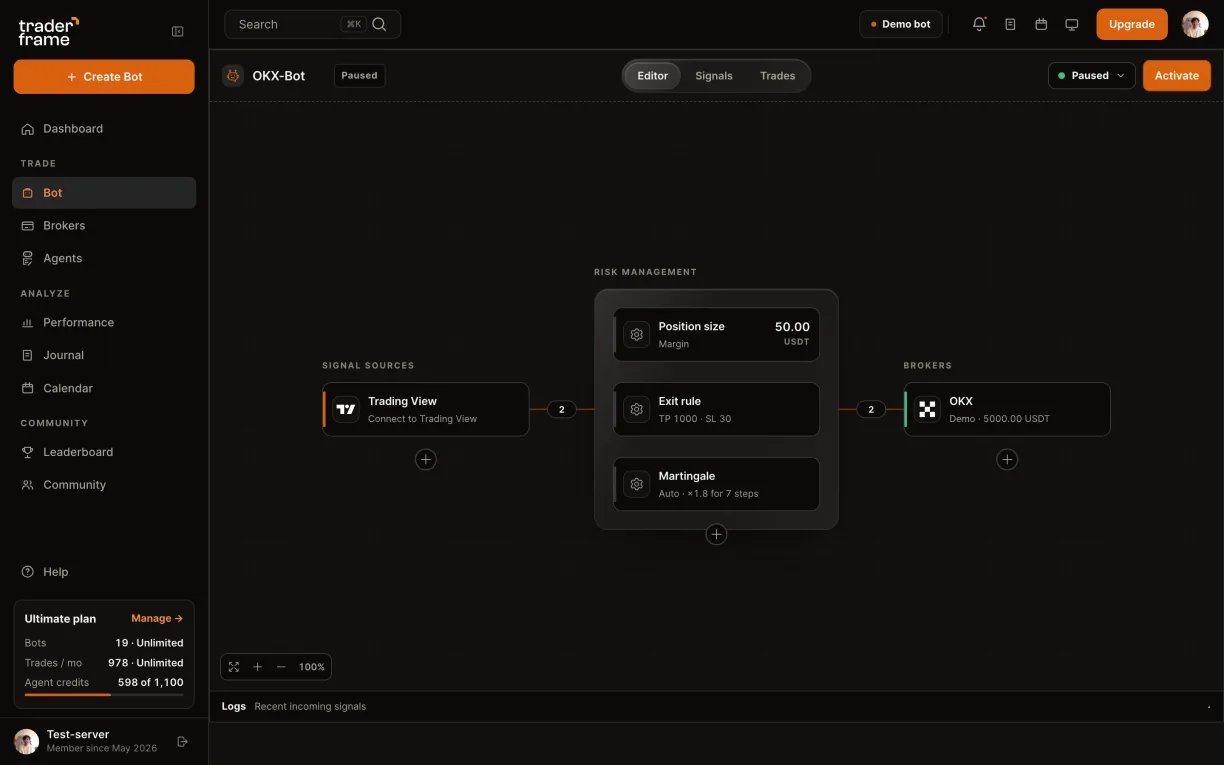
Adding Trading View as the signal source and pressing Activate

The alert message

The message only says buy or sell. The bot decides the size, the leverage and the exits.

TradingView
TradingView alert message · strategy
Copy it from the bot’s Trading View panel
{ "symbol": "{{ticker}}", "side": "{{strategy.order.action}}" }
TradingView
Indicator alerts · one per side
Buy opens a long · Sell opens a short
{ "symbol": "{{ticker}}", "side": "BUY" }
{ "symbol": "{{ticker}}", "side": "SELL" }

The alert names the pair the way your chart does, for example BTCUSDT. Size, leverage and exits always come from the bot.

AI trading agent for OKX

Meet Pip: an AI trading agent that trades OKX inside your limits

Pip is Trader Frame’s Trade Agent. Add it to an OKX bot instead of an alert: Pip reads the BTC/USDT perpetual market, decides when to go long or short, and explains every decision. Your bot still sets the size, the leverage and the exits.

Suggest
Pip proposes the trade and you place it or skip it. A proposal expires after 5 minutes.
Enter
Pip places the trade itself, inside your bot’s limits: size, leverage, trading hours and plan.
Manage
While its own position is open, Pip can move the stop closer (never wider) or close the trade.
Add Pip to an OKX bot
Pick Trade Agent under Signal sources

Can an AI agent trade OKX for me?

Yes. Add Pip, the Trade Agent, to an OKX bot as its signal source. Pip decides when to buy or sell; the bot places the order on OKX with your size, leverage and exits.

What does Pip read before a trade?

The pair’s candles on several timeframes, plus the market around them on OKX: spread, volume, funding on the perpetual and order-book depth.

Does Pip use my exits?

Yes. Take profit, stop loss and the trailing stop come from the bot’s Exit rule, and OKX holds them with the position.

How is Pip paid for?

Each look Pip takes uses agent credits from your plan. The Free plan has no agent.

Demo or real

Same bot, two ways in

Demo and real both connect through OKX’s own approval, one click each. Everything you build on top is the same, so a bot proven on demo moves to real by changing its broker.

Demo
Real
How it connects
One click: you approve it on OKX
Funds
Virtual funds
Your USDT
Your password
Never seen: you sign in on OKX
Permissions
Read and trade, never withdrawal
Side by side
One demo account
One real account

Keeping it running

Day to day on OKX

Exits live on OKX

Take profit, stop loss and a continuous trailing stop are placed on OKX with the position, so they hold on their own. Closing by hand in Trader Frame cancels the ones left over.

Leverage and margin mode

Set per bot in Position size. Isolated limits a trade to its own margin; Cross shares your wallet, so the liquidation price depends on your balance.

Fees and funding

The position preview estimates entry and exit fees. Funding accrues while a position stays open and changes by market and hour, so it is not priced in advance.

Demo and real, side by side

Connect one demo and one real OKX account. Each bot points at one of them, so a bot moves from demo to real by changing its broker.

Troubleshooting

What a message means, and what to do

Every refusal and skip is written to the bot’s Signals tab with its reason.

What you see
Why
What to do
Back from OKX with no account
The approval was cancelled on OKX.
Choose Demo or Real, press Connect and approve again.
Connect: “already have a connected account”
One demo and one real OKX account at a time.
Use the account you have, or disconnect it first.
Account card: “Key rejected”
OKX no longer accepts the approval, for example after it was revoked on OKX.
Disconnect the account and connect it again.
Skipped: “Symbol mismatch”
The alert named a different pair than the bot trades.
Point the alert at the right bot, or change its pair.

FAQ

OKX questions

Does Trader Frame see my OKX password?

No. Demo and real accounts are both approved on OKX itself. Your password never reaches Trader Frame.

Do I need an OKX API key?

No. OKX grants the access when you approve it on its site, for demo and real alike, so there is nothing to copy or paste.

Can Trader Frame withdraw my funds?

No. The approval carries read and trade permission only, never withdrawal.

Which markets can the bot trade?

OKX USDT perpetual futures, such as BTC/USDT, ETH/USDT and XRP/USDT, with the leverage and margin mode you set.

Is the trailing stop really on OKX?

Yes, in Continuous mode: OKX holds it as its own trailing order with the position. Steps mode moves your stop in stages from Trader Frame.

Can I keep demo and real side by side?

Yes. Connect one demo and one real OKX account, and point each bot at the one you want.

Start on demo

Practise on demo. Go real in one click.

When the bot has earned it, connect your real OKX account and point the same bot at it. Nothing else changes.