
KuCoin integration · USDT perpetual futures

Automate Crypto Futures Trading on KuCoin

Connect your KuCoin account in one click: you approve Trader Frame on KuCoin, and there is no key to copy or paste. Then build a bot that trades USDT perpetual futures from your signals, with take profit, stop loss and a stop that steps up as the trade goes your way. Five steps, no code.
One-click approval
No key to paste
Stop that steps up
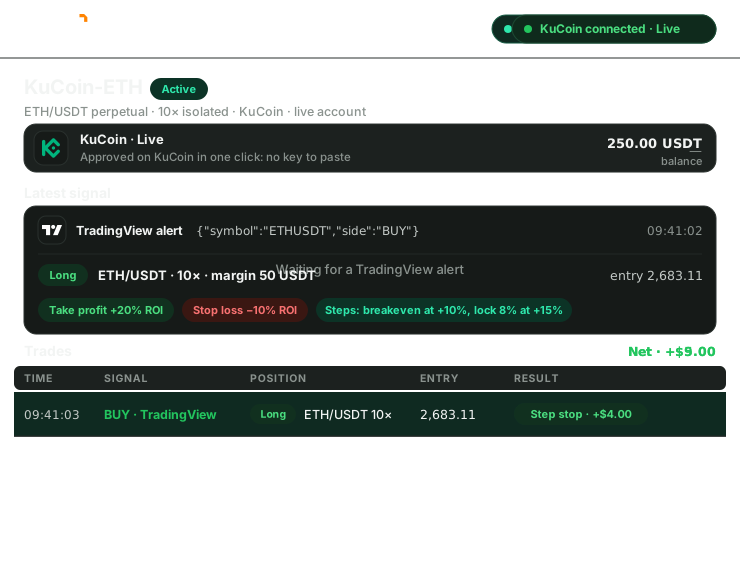
A live KuCoin account connecting to Trader Frame in one click, a TradingView buy alert opening a ten times long on ETH/USDT with take profit, stop loss and a stepped stop, and the trade landing in the list
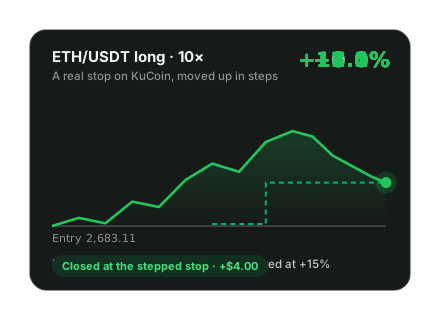
The ETH/USDT long rising while its stop steps up to breakeven and then to plus 8 percent ROI, then closing the trade at plus 8 percent

Before you start

What you need, and nothing to install

KuCoin connects over the internet, straight from Trader Frame. There is no app on your computer, and you sign in on KuCoin itself, so Trader Frame never sees your password.
A KuCoin account

A live account with futures enabled. You approve Trader Frame on KuCoin, and KuCoin creates the key.
USDT for margin

In your KuCoin futures account. KuCoin has no demo mode here, so every trade is real.
A signal source

TradingView alerts, Telegram, Discord, Copy Trader, or Pip, the AI Trade Agent.

Trade, never withdraw

Trader Frame places and closes orders. It can’t withdraw your funds and will never ask to.

What happens to every signal
Your signal
Says buy or sell, and the pair
Trader Frame
Size, leverage and exits from your bot
KuCoin
KuCoin
Order, stop and target placed together

Your bot decides the size, the leverage and the exits. KuCoin holds the take profit and stop loss with the position, and Trader Frame moves the stop up in steps.

Step by step

From a KuCoin account to a bot trading ETH/USDT

KuCoin connects live accounts only, so start with a small trade size and raise it once the bot has earned it.

01
Step 1 of 5

Pick KuCoin in the connect sheet

  • Open Brokers and press + Connect broker.
  • Pick KuCoin under Crypto.
  • Press Continue: there is no key to paste.

KuCoin connects your live account only. There is no demo or practice mode for KuCoin in Trader Frame.
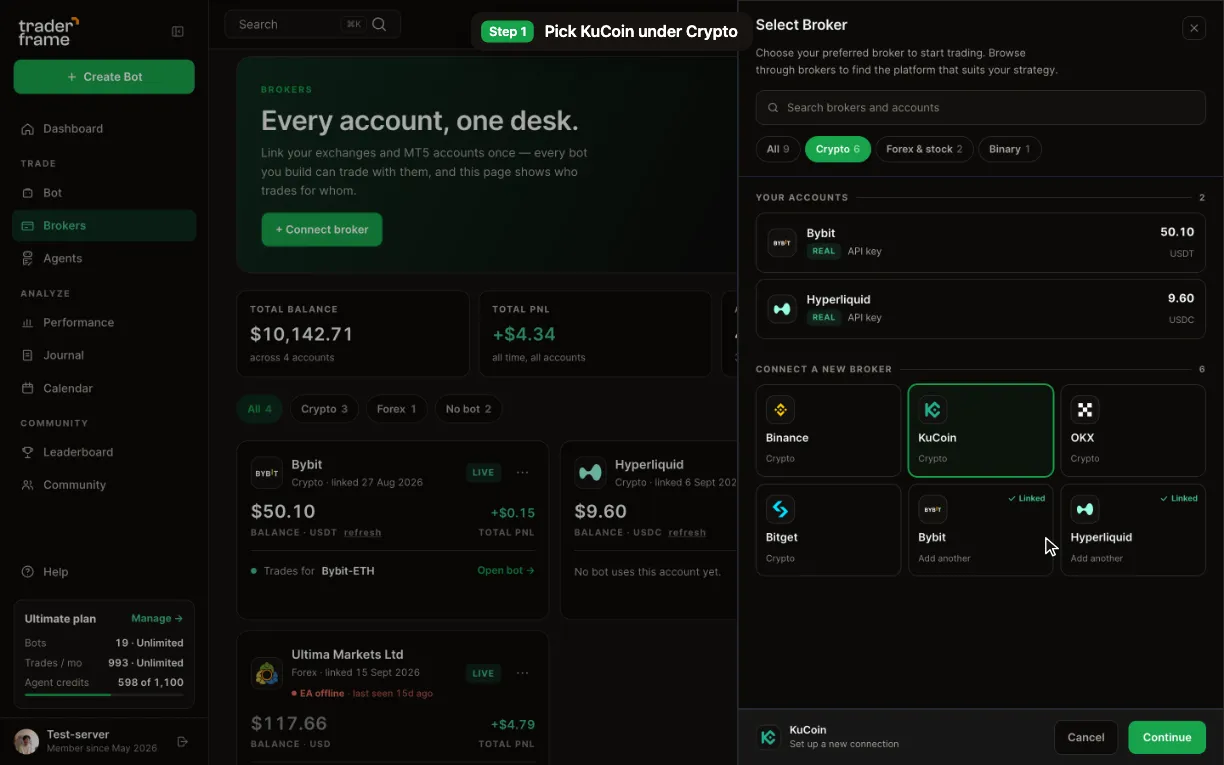
Opening the connect sheet from the Brokers page, picking KuCoin under Crypto, and pressing Continue
02
Step 2 of 5

Approve Trader Frame on KuCoin

  • KuCoin opens and asks you to sign in.
  • You approve, and KuCoin creates the API key for Trader Frame.
  • KuCoin sends you back: your live account appears with its balance.

The approval link expires after 10 minutes. If it sat open, press Continue again. Any security code KuCoin asks for happens on KuCoin, and Trader Frame never sees it.
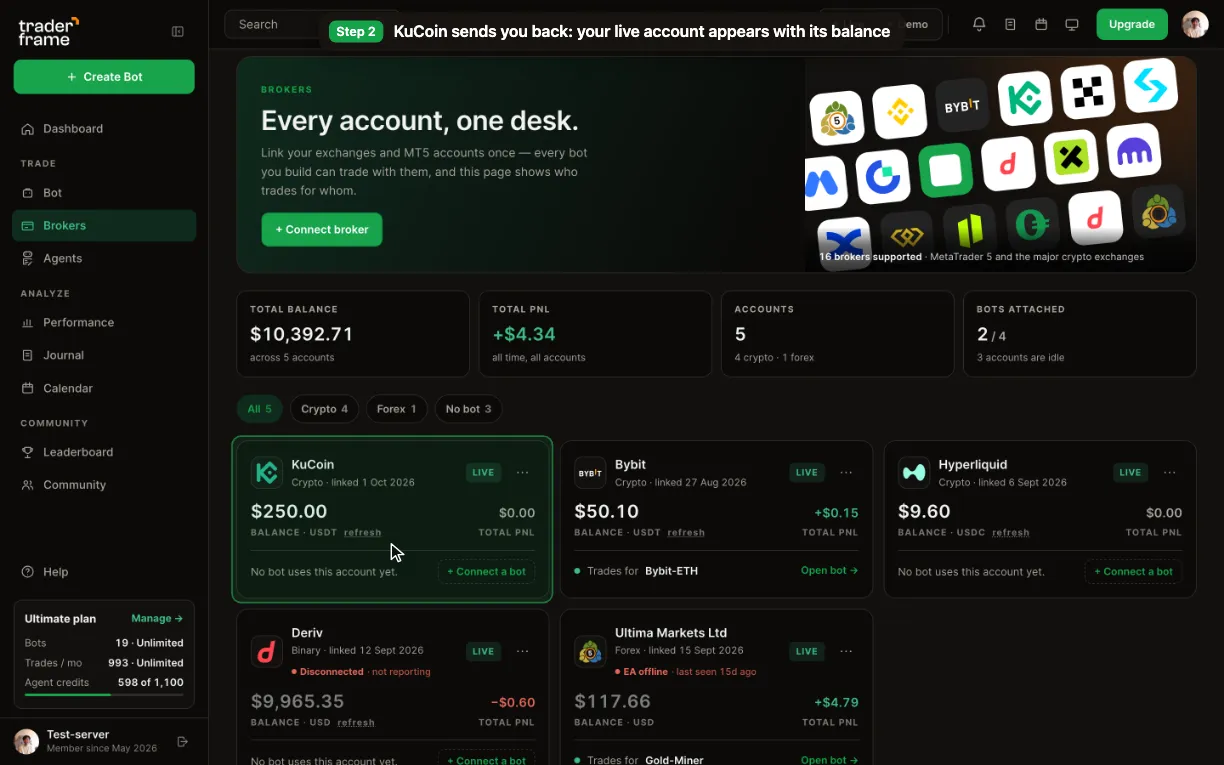
Pressing Continue, approving Trader Frame on KuCoin, and the live KuCoin account appearing on the Brokers page with its balance
03
Step 3 of 5

Build a crypto futures bot on KuCoin

  • Create a bot and pick your KuCoin account under Brokers.
  • In Position size, pick the trading pair, for example ETH/USDT.
  • Set the trade size: margin, order size or coins.
  • Choose the leverage and the margin mode, Cross or Isolated.

The panel shows what each trade commits: margin, notional at your leverage and the share of your balance.
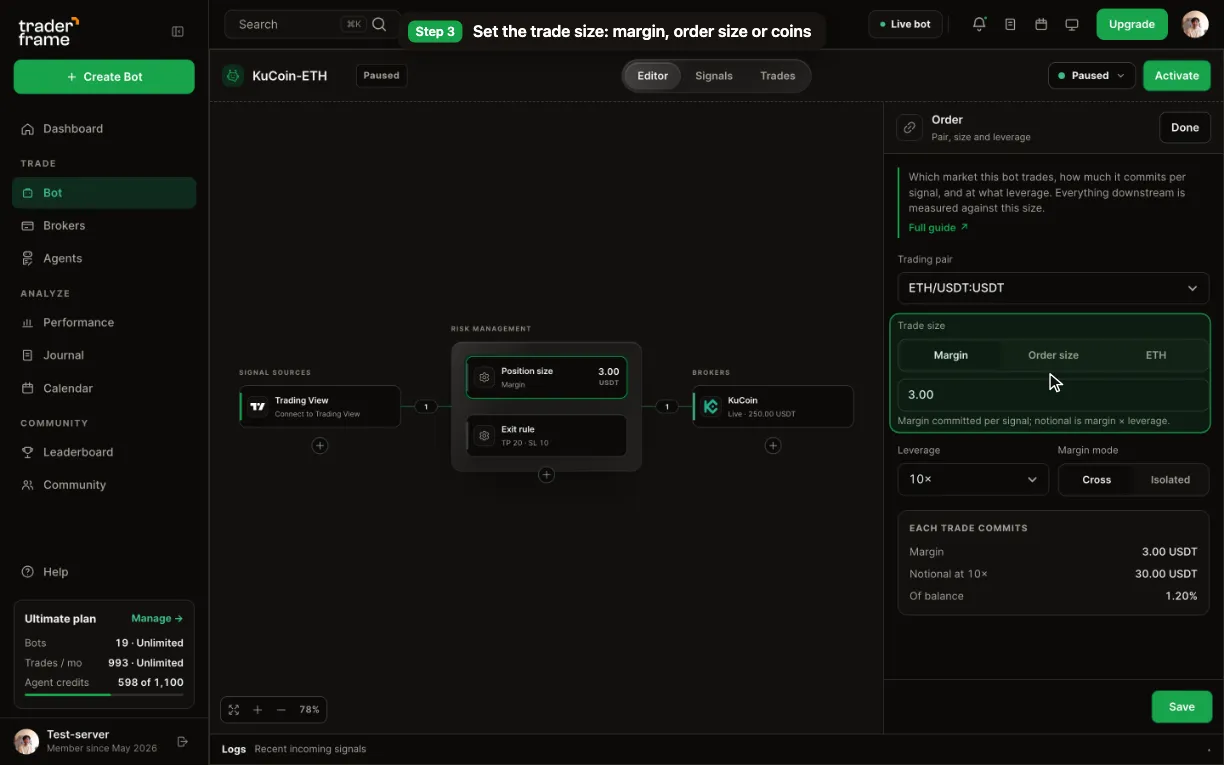
Picking the KuCoin account for a bot, then the ETH/USDT pair, trade size, 10× leverage and margin mode in the Position size panel
04
Step 4 of 5

Set the exits

  • In Exit rule, choose how positions close: Auto close at your target or stop, or follow the signal.
  • Set take profit and stop loss in ROI %.
  • Turn on the trailing stop and choose Steps: KuCoin has no continuous trailing order.
  • Add steps: at 10 % ROI move the stop to 0, breakeven; at 15 lock in 8.
  • Check the position preview: prices, fees and the result at take profit and stop loss.
  • Press Save.

Each step sets a real stop on KuCoin, so it holds even if the ladder pauses. The stop only ever tightens.
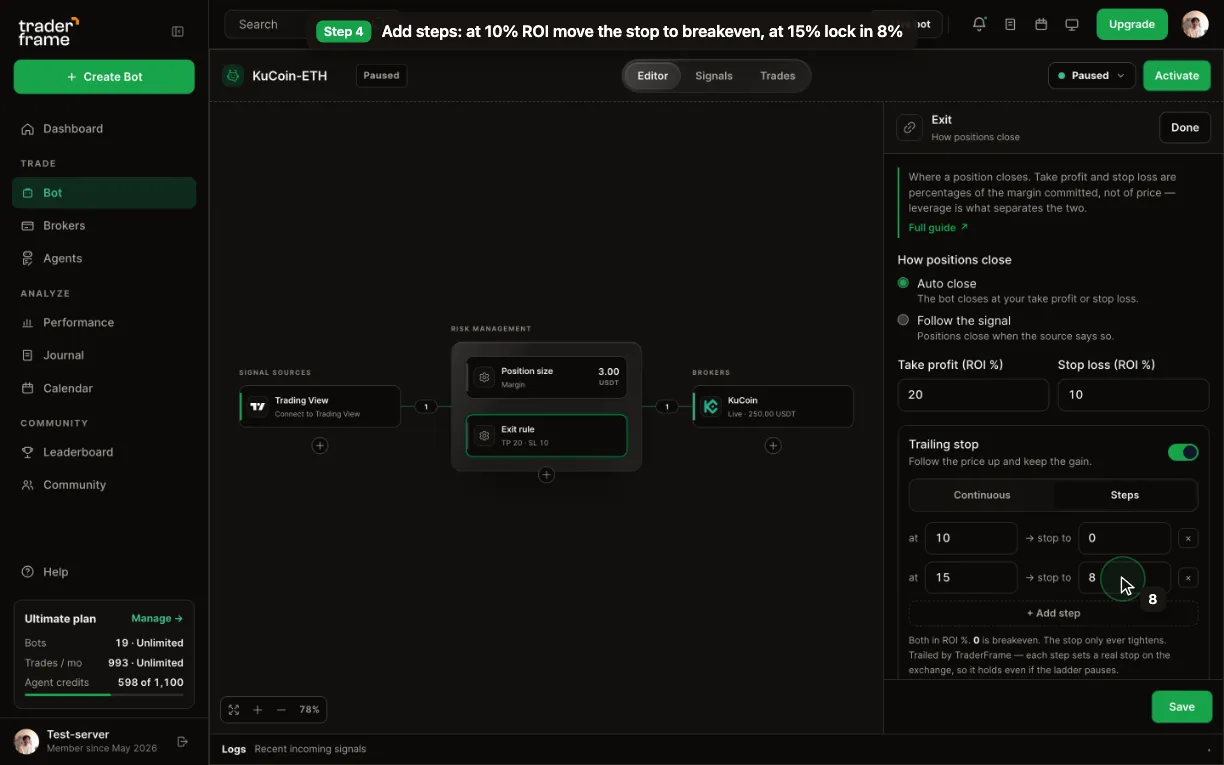
The Exit rule panel: auto close, take profit and stop loss in ROI %, the trailing stop set to Steps with two steps, the position preview, then Save
05
Step 5 of 5

Add a signal and switch it on

  • Under Signal sources, add Trading View for your alerts.
  • Or add Trade Agent, Telegram or Discord as the source.
  • Press Activate.

Open the Trading View source for the webhook URL and the Buy and Sell alert messages, and paste them into your TradingView alert.
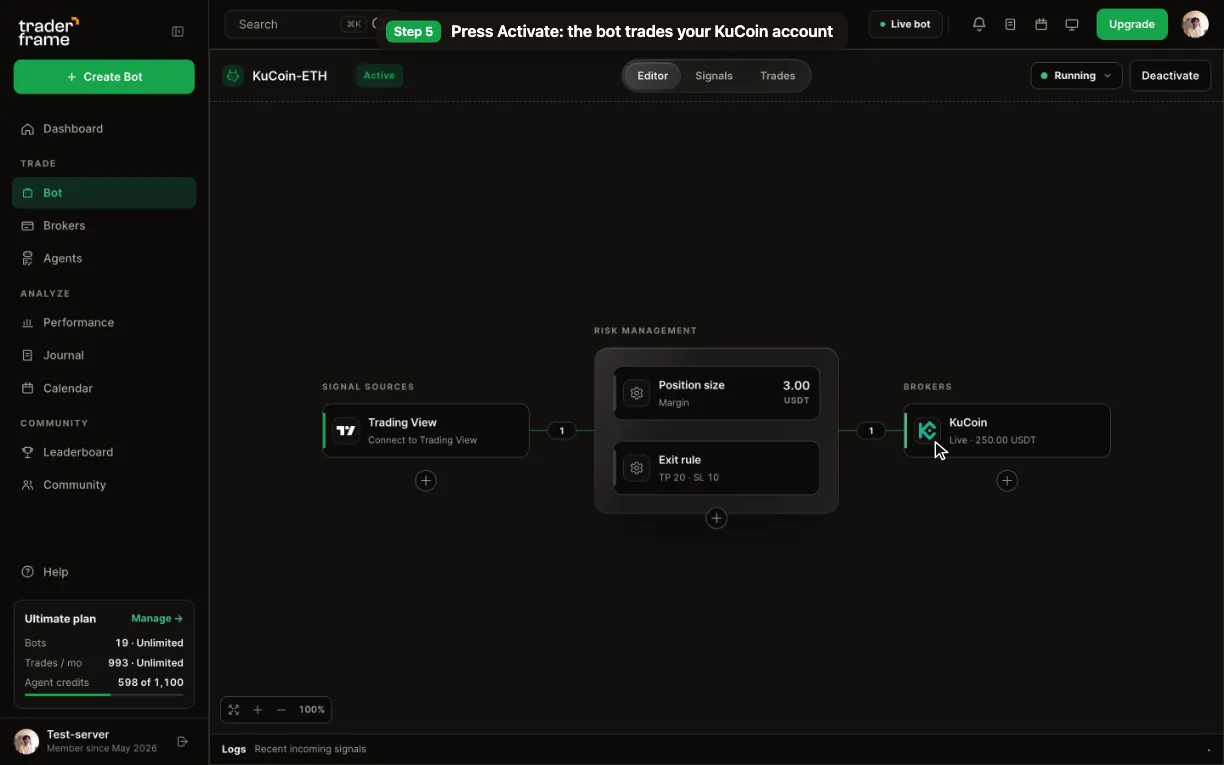
Opening the signal source menu with Trading View, Telegram, Trade Agent and Discord, and pressing Activate

The alert message

The message only says buy or sell. The bot decides the size, the leverage and the exits.

TradingView
TradingView alert message · strategy
Copy it from the bot’s Trading View panel
{ "symbol": "{{ticker}}", "side": "{{strategy.order.action}}" }
TradingView
Indicator alerts · one per side
Buy opens a long · Sell opens a short
{ "symbol": "{{ticker}}", "side": "BUY" }
{ "symbol": "{{ticker}}", "side": "SELL" }

The alert names the pair the way your chart does, for example ETHUSDT. Size, leverage and exits always come from the bot.

AI trading agent for KuCoin

Meet Pip: an AI trading agent that trades KuCoin inside your limits

Pip is Trader Frame’s Trade Agent. Add it to a KuCoin bot instead of an alert: Pip reads the ETH/USDT perpetual market, decides when to go long or short, and explains every decision. Your bot still sets the size, the leverage and the exits.

Suggest
Pip proposes the trade and you place it or skip it. A proposal expires after 5 minutes.
Enter
Pip places the trade itself, inside your bot’s limits: size, leverage, trading hours and plan.
Manage
While its own position is open, Pip can move the stop closer (never wider) or close the trade.
Add Pip to a KuCoin bot
Pick Trade Agent under Signal sources

Can an AI agent trade KuCoin for me?

Yes. Add Pip, the Trade Agent, to a KuCoin bot as its signal source. Pip decides when to buy or sell; the bot places the order on KuCoin with your size, leverage and exits.

What does Pip read before a trade?

The pair’s candles on several timeframes, plus the market around them on KuCoin: spread, volume, funding on the perpetual and order-book depth.

Does Pip use my exits?

Yes. Take profit, stop loss and the steps come from the bot’s Exit rule, and KuCoin holds the stops with the position.

How is Pip paid for?

Each look Pip takes uses agent credits from your plan. The Free plan has no agent.

Live only

One click in, the same bot as anywhere

KuCoin has no demo mode in Trader Frame. To practise first, run the bot on a demo account at OKX, Bitget, Bybit or Binance, then point it at KuCoin by changing its broker: the size, the exits and the signal stay the same.

KuCoin in Trader Frame
How it connects
You approve Trader Frame on KuCoin, in one click
Your password
Never seen: you sign in on KuCoin itself
The API key
KuCoin creates it for Trader Frame: nothing to copy or paste
Account
Live, with your USDT. No demo mode
Withdrawals
Never: Trader Frame only places and closes orders

Keeping it running

Day to day on KuCoin

Exits live on KuCoin

Take profit and stop loss are placed on KuCoin with the position, so they hold on their own. With Steps, Trader Frame moves the stop up as each level is reached, and every step is a real stop on KuCoin.

Leverage and margin mode

Set per bot in Position size. Isolated limits a trade to its own margin; Cross shares your wallet, so the liquidation price depends on your balance.

Fees and funding

The position preview estimates entry and exit fees. Funding accrues while a position stays open and changes by market and hour, so it is not priced in advance.

If KuCoin stops accepting it

The bot trades through the key KuCoin created when you approved. If that key is deleted on KuCoin, the account card says so: connect KuCoin again and approve.

Troubleshooting

What a message means, and what to do

Every refusal and skip is written to the bot’s Signals tab with its reason.

What you see
Why
What to do
Back from KuCoin with no account
The approval was cancelled, or the link was more than 10 minutes old.
Press Connect broker, pick KuCoin and approve within 10 minutes.
Exit rule: “KuCoin has no continuous trailing order”
Continuous trailing needs an exchange trailing order, and KuCoin has none.
Choose Steps: the ladder works on every exchange.
Account card: “Key rejected”
KuCoin no longer accepts the key it created, for example after it was deleted on KuCoin.
Connect KuCoin again and approve.
Orders refused for margin
The futures account doesn’t hold enough USDT for the trade size at your leverage.
Move USDT to your KuCoin futures account, or lower the trade size.
Skipped: “Symbol mismatch”
The alert named a different pair than the bot trades.
Point the alert at the right bot, or change its pair.

FAQ

KuCoin questions

Does Trader Frame see my KuCoin password?

No. You sign in on KuCoin itself and approve Trader Frame there. KuCoin then creates the key Trader Frame trades with.

Is there a KuCoin demo account?

No. KuCoin connects live accounts only. Practise on a demo account at OKX, Bitget, Bybit or Binance, then point the same bot at KuCoin.

Can Trader Frame withdraw my funds?

No. Trader Frame only places and closes orders. It can’t withdraw, and it will never ask you to allow it.

Which markets can the bot trade?

KuCoin USDT perpetual futures, such as BTC/USDT, ETH/USDT and SOL/USDT, with the leverage and margin mode you set.

Why Steps instead of a trailing stop?

KuCoin has no exchange trailing order. Steps move your stop up in stages from Trader Frame, and each step is a real stop on KuCoin, so it holds even if the ladder pauses.

What if I close the KuCoin page without approving?

Nothing is connected. Press Connect broker, pick KuCoin and press Continue again: each approval link lasts 10 minutes.

One click

Approve once. Let the bot trade KuCoin.

Start with a small size on your live KuCoin account, or prove the bot on another exchange’s demo first and point it at KuCoin when it has earned it.