
Futures and Options Trading Automation
Interactive Brokers options
Setup guide · US stock and ETF options · about 10 minutes

Automate Options Trading on Interactive Brokers

Your signals say buy or sell. The bot picks the contract: a call or a put at the delta you want, inside your expiry window and under your cost cap, then manages it in premium. Six steps, on a paper account first, and no code.
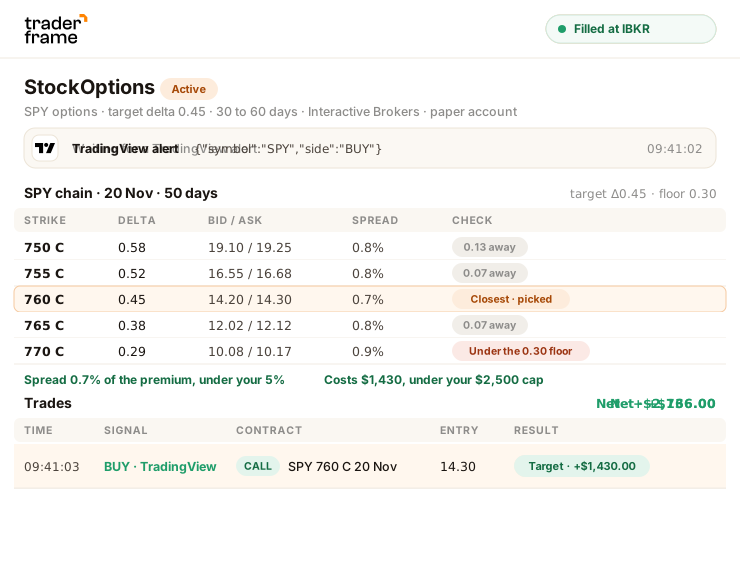
A TradingView buy alert for SPY reaches Trader Frame; the bot reads the SPY option chain, picks the 0.45 delta call, buys it at Interactive Brokers, and the trade lands in the list
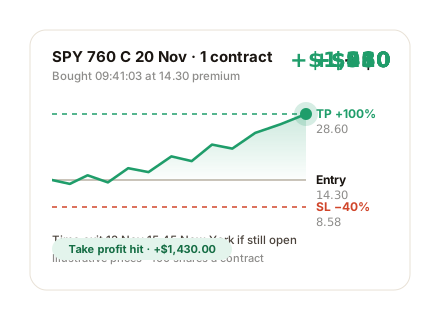
The SPY 760 call bought at 14.30 rising to its take-profit at double the premium, +$1,430.00, with the time exit a week before expiry

Before you start

What you need before the first options bot

Options run on the same connection as futures: the TraderFrame Bridge next to IB Gateway on your computer. If your IBKR account is already connected, you are most of the way there.

IBKR connected to Trader Frame

Through the Bridge and IB Gateway. Not connected yet? Do steps 1 to 4 of the futures guide first, then come back.

Open the futures guide

Bridge 1.3.8 or newer

Options need it. The Interactive Brokers card on Brokers shows your version, and an Update link when there is a newer one.

Options trading permission

Options must be allowed on your IBKR account, in Client Portal under trading permissions.

US options data, for live

Paper trades on delayed quotes. A live account needs a US options (OPRA) subscription in IBKR.

What happens to every signal

Your signal
Says buy or sell, and the underlying
Contract rule
A buy becomes a call, a sell a put
Checks
Spread, cost cap and your filters
Interactive Brokers
The contract is bought

The alert never names a strike or an expiry. The bot reads the chain when the signal arrives and picks one contract by your rule. If a check fails, nothing is bought and the Signals tab says why.

Step by step

From a connected account to an options bot trading SPY on paper

Do the steps in order. Each one ends with something you can see, so you know it worked before you move on.

01
Step 1 of 6

Check your IBKR account is ready for options

  • In IBKR Client Portal, make sure options trading is allowed on the account, under Settings › Trading Permissions.
  • For a live account, subscribe to US options (OPRA) data under Market Data Subscriptions. Paper works on delayed quotes.
  • In Trader Frame, open Brokers: the Interactive Brokers card reads Bridge online, with Bridge 1.3.8 or newer. If it shows Update, install the new Bridge first.
Ready for options
IBKR Client Portal and Trader Frame
Options trading permission
Allowed
Interactive Brokers card on Brokers
Bridge online
TraderFrame Bridge
1.3.8 or newer
Market data on paper
Delayed is fine
Market data on live
US options (OPRA)
02
Step 2 of 6

Create an options bot

  • Create a bot and pick the Interactive Brokers account as its broker.
  • Open Position size and set Instrument to Options.
  • Pick the underlying, for example SPY.

One bot trades options on one underlying. Make another bot for QQQ or a single stock.
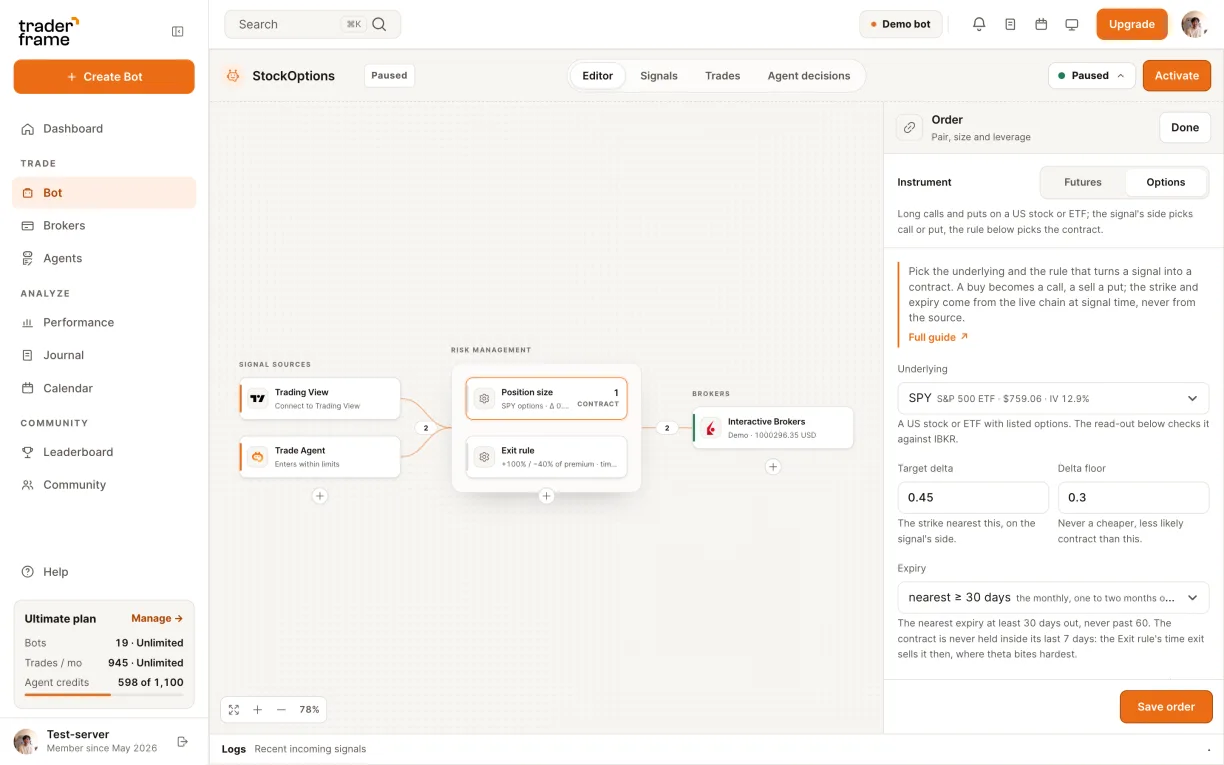
Creating an options bot: picking the Interactive Brokers account, then Options and SPY in the Position size panel
03
Step 3 of 6

Set the contract rule

  • Set the target delta and a floor. The bot buys the strike whose delta is closest to the target, and never one under the floor.
  • Set the expiry window: the nearest expiry at least 30 days out, never past 60.
  • Set contracts per signal and the most one trade may cost.
  • Set the max spread as a % of the premium. A wider quote is refused.

A buy signal buys a call and a sell signal buys a put. The bot only ever buys, so the most a trade can lose is its premium.
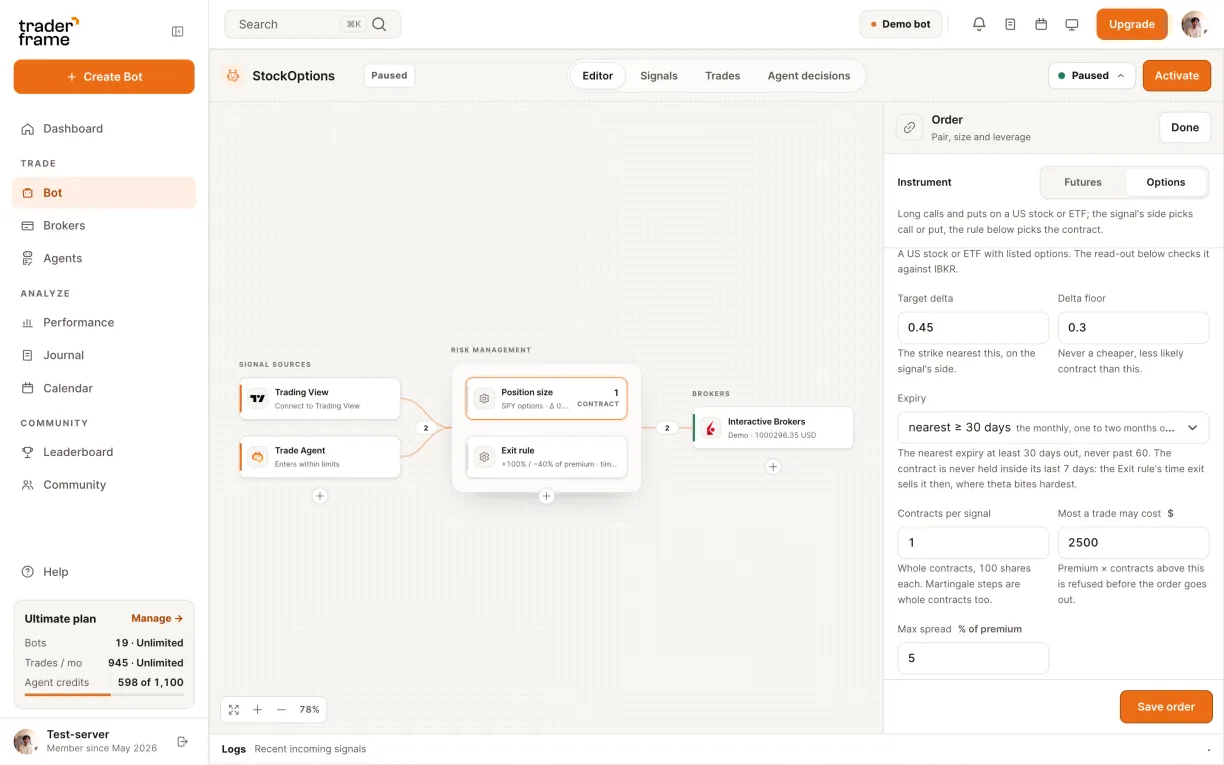
The options contract rule: target delta 0.45 with a 0.30 floor, 30 to 60 days, one contract, a $2,500 cost cap and a 5% spread limit
04
Step 4 of 6

Add filters if you want them

  • Max IV rank: skip entries while premium is expensive against its 52-week range.
  • Clear of earnings: no new contract within that many days of an earnings date.
  • Never hold through earnings: refuse a contract whose life spans the next report.
  • Press Save order.

A filter with no reading refuses the trade: missing IV history or an unknown earnings date never slips through.
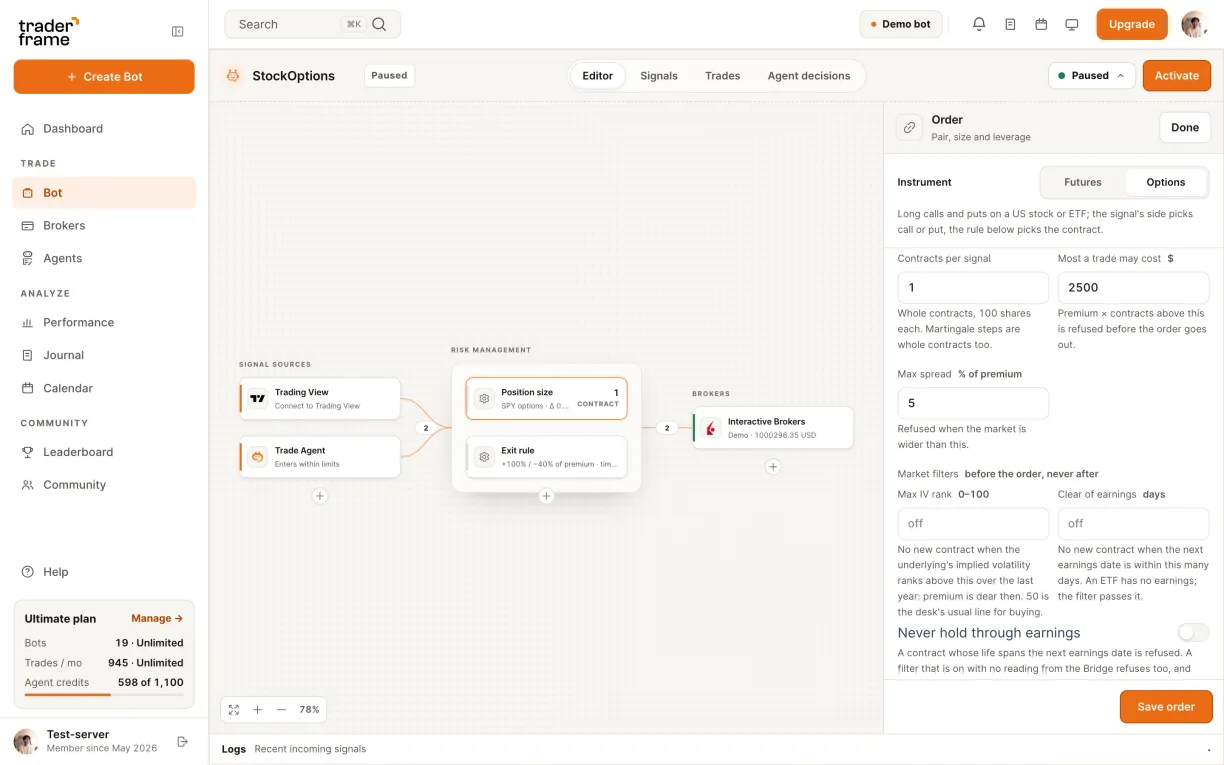
The options filters: Max IV rank, clear of earnings days and never hold through earnings, then Save order
05
Step 5 of 6

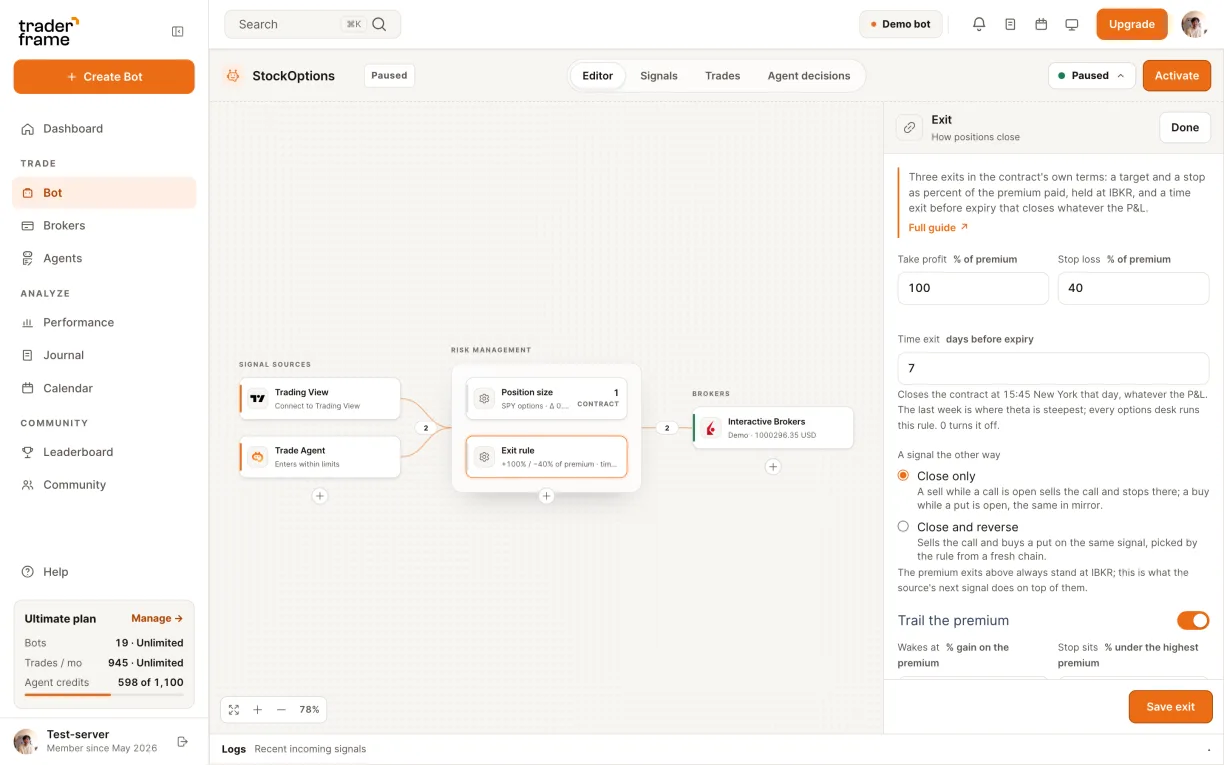
Set the exits in premium

  • Take profit and stop loss in % of the premium, for example +100% and −40%.
  • Time exit: that many days before expiry, sold at 15:45 New York.
  • Choose what an opposite signal does: Close only, or Close and reverse.
  • Trail the premium, if you want: it wakes at a gain you set, then follows the highest premium.
  • Press Save exit.
Set a time exit so a contract never sits into its last days, when premium drains fastest.
The options exit panel: take profit 100% and stop 40% of the premium, a time exit 7 days before expiry, close only on an opposite signal, and trailing the premium
06
Step 6 of 6

Add a signal and switch it on

  • Open the Trading View source and copy the webhook URL.
  • Copy the Buy and Sell alert messages into your TradingView alerts.
  • Press Activate.
  • Watch the Trades tab: calls on buys, puts on sells.

Every signal and its outcome, bought or refused with the reason, is on the Signals tab.
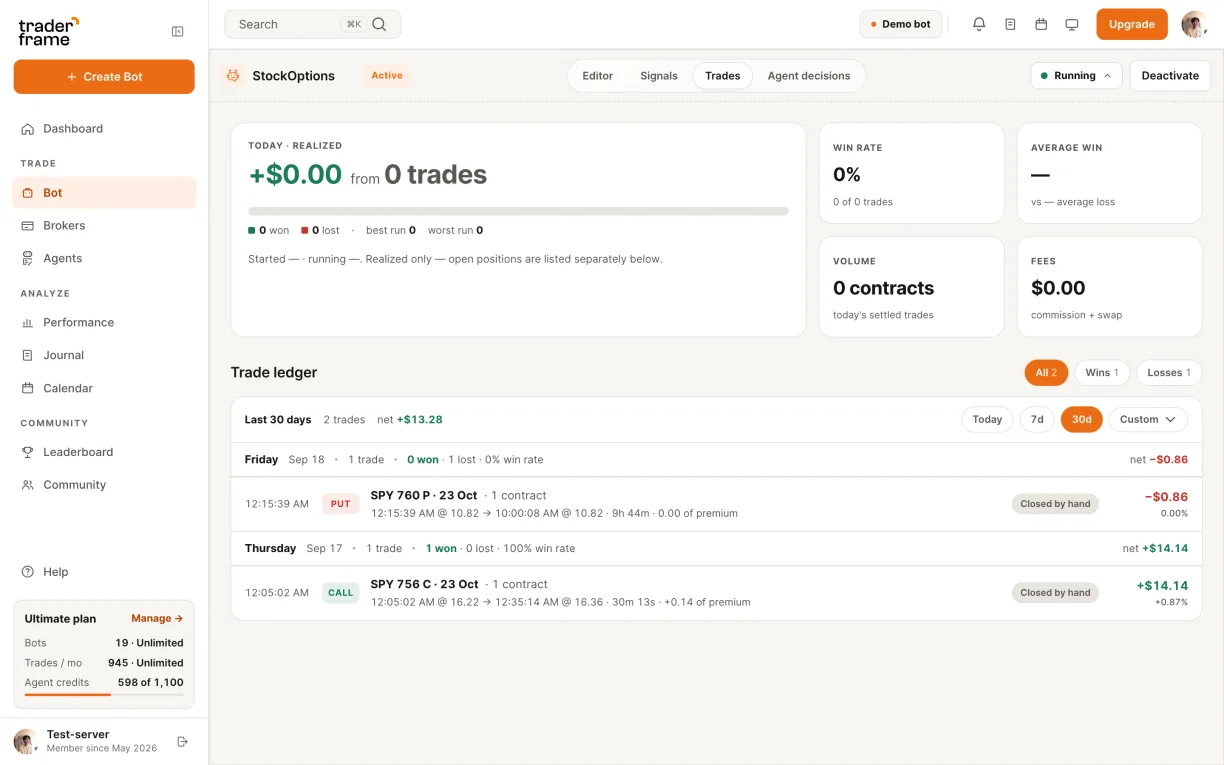
Copying the webhook and alert messages from the TradingView panel, activating the bot, and the Trades tab with a SPY call and a SPY put

The alert message

The message only says buy or sell. The contract, size and exits come from the bot.

TradingView alert message · strategy
Copy it from the bot's TradingView panel
{ "symbol": "{{ticker}}", "side": "{{strategy.order.action}}" }
Indicator alerts · one per side
Buy buys a call · Sell buys a put
{ "symbol": "{{ticker}}", "side": "BUY" }
{ "symbol": "{{ticker}}", "side": "SELL" }

The alert names the underlying, the same symbol as your chart. Strike, expiry and size always come from the bot, never from the alert.

Market data

Delayed on paper is fine. Live options need OPRA data.

The bot reads deltas, bid and ask from the chain when a signal arrives. On a live account those have to be real-time, so live entries wait for a US options (OPRA) subscription. Paper trades on delayed quotes.

Subscribe in IBKR Client Portal
Settings › Trading Platform › Market Data Subscriptions › US stock data and US options (OPRA).
Options trade in the regular session only: 09:30 to 16:00 Eastern.
Account
Options data
What the bot does
Paper
Delayed
Trades on delayed quotes.
Live
Delayed
Refuses entries: “Live options entries need real-time data”.
Live
OPRA real-time
Trades.
Any
Outside 09:30–16:00 ET
Refuses: “Market closed: US options trade 09:30 to 16:00 Eastern.”

Keeping it running

Day to day with an options bot

Regular hours only

Options bots buy between 09:30 and 16:00 Eastern. An alert outside those hours is refused and written to the Signals tab; the next one inside the session trades.

The time exit

A contract still open that many days before its expiry is sold at 15:45 New York. It keeps a bot from holding into the last days, when premium drains fastest.

The daily log-in

IB Gateway asks you to log in again once a day, and to re-authenticate fully once a week. Until you do, the account reads Needs your login and your bots pause. Log in and the Bridge reconnects on its own.

Updating the Bridge

Options need Bridge 1.3.8 or newer. When a newer one is out, the account card shows an Update link: download again and replace the app. Your token and settings stay.

Troubleshooting

What a message means, and what to do

Every refusal and skip is written to the bot's Signals tab with its reason, so you can see why a signal did not trade.

What you see
Why
What to do
Refused: “Market closed: US options trade 09:30 to 16:00 Eastern.”
The alert came outside the regular session.
Nothing to fix: the next alert inside the session trades.
Refused: “Live options entries need real-time data”
A live account without US options data.
Subscribe to OPRA in IBKR. Delayed quotes are fine on paper.
Skipped: “Symbol mismatch … but bot trades options on SPY”
The alert named a different underlying.
Point the alert at the right bot, or change its underlying.
Refused: “No call on SPY between 30 and 60 days out”
No expiry falls inside your window.
Widen the expiry window.
Refused: “Every call near the target is under your delta floor”
The strikes near your target delta are under the floor.
Lower the floor or raise the target delta.
Refused: “Spread too wide … your limit is 5%”
Bid and ask are too far apart for your limit.
Raise the limit, or trade a busier underlying or expiry.
Refused: “… costs $3,120, over your $2,500 cap”
One trade would cost more than your cap.
Raise the cap, buy fewer contracts, or lower the target delta.
Refused: “IV rank … is over your cap”
Premium is expensive against its 52-week range.
Wait for it to cool, or raise Max IV rank.
Refused: an earnings date
Earnings are within your days, or inside the contract’s life.
Wait until the report has passed, or loosen the filter.
Refused: “Could not read the SPY chain”
The Bridge could not get the chain from IBKR.
Check the Bridge is online and IB Gateway is logged in.
Limits
The bot buys calls and puts; it never writes options
One underlying per bot
Regular session, 09:30 to 16:00 Eastern
Individual accounts only: not linked or advisor accounts

FAQ

Interactive Brokers options questions

Does the bot sell or write options?

No. Every signal buys one kind of contract: a call on buy, a put on sell. The most a trade can lose is the premium you paid.

How does it choose the strike and expiry?

It takes the nearest expiry inside your window, then the strike whose delta is closest to your target and not under your floor. Spread and cost are checked before anything is bought.

What does an opposite signal do?

You choose. Close only sells the open contract. Close and reverse sells it and buys the other side, a put after a call or a call after a put.

What happens as expiry gets close?

The time exit sells an open contract that many days before expiry, at 15:45 New York. Set it so the bot never holds into the last days.

Why are quotes late on my paper account?

Most IBKR accounts start with delayed data. Paper trades on it anyway. A live account needs a US options (OPRA) subscription before it can enter.

Can I use the same Bridge as my futures bots?

Yes. It is one connection per IBKR account, set up in the futures guide. Options only need the Bridge to be 1.3.8 or newer.

Start on a paper account

Prove it on paper. Go live when it has earned it.

Switching to live is the same bot on your live IBKR account, with a US options (OPRA) subscription. Nothing else changes.