

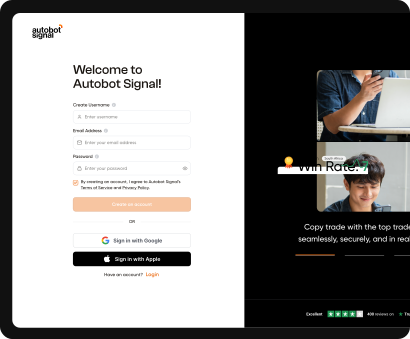
Begin your journey by logging into the Trader Frame Platform. Once inside, you’ll unlock access to powerful trading tools and features designed to help you create, manage, and monitor your bots with ease.
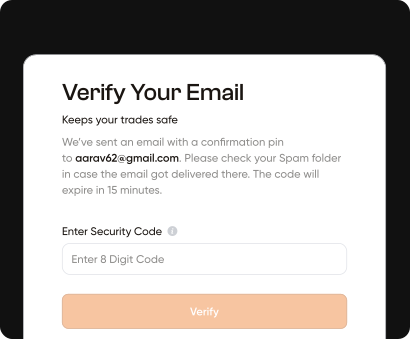
Keep your account safe by verifying your email address. Simply enter the confirmation code sent to your inbox to secure your profile and ensure a protected trading experience.
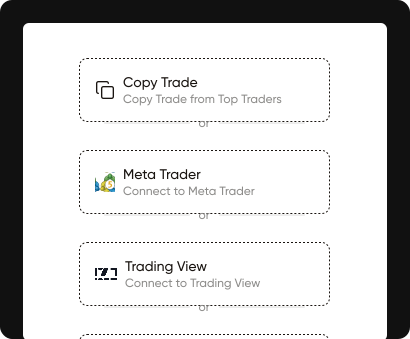
Explore from a range of expert signal providers, each with their own style, strategies, and performance history. Whether you prefer conservative, steady trades or aggressive, high-frequency signals, you can pick the provider that aligns best with your trading goals.
Keep your account safe by verifying your email address. Simply enter the confirmation code sent to your inbox to secure your profile and ensure a protected trading experience.
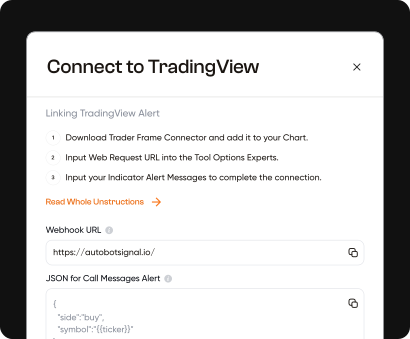
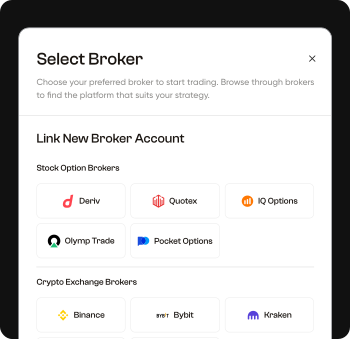
To get started, simply select the broker you want to connect with from the available list and click on “Connect.” Once selected, you’ll be prompted to log in to your broker account using your email and password. This quick and secure process links your broker to Trader Frame, enabling seamless trading so your strategies can start running without any interruptions.
Let we walk you through each settings of our new update and features.
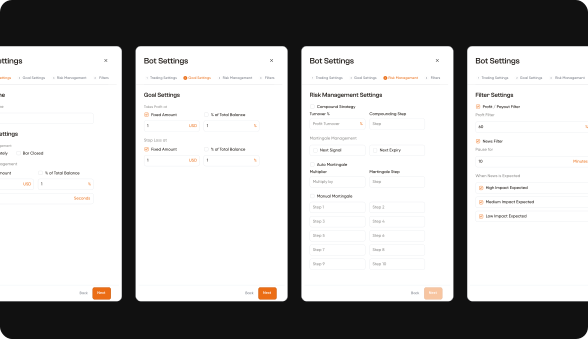
Once you have successfully logged in and Input your Signal Key, you can choose between two types of entries: Immediately or Bar Closed.
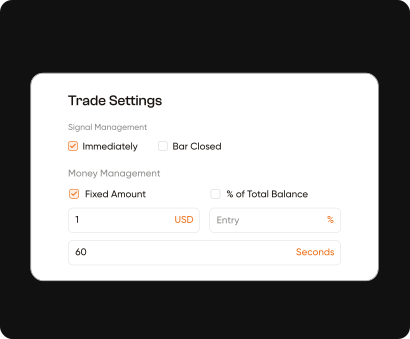
The trade will be executed immediately on your broker at the exact same time or approximately when the alert is triggered.
The trade will be executed immediately on your broker at the exact same time or approximately when the alert is triggered.
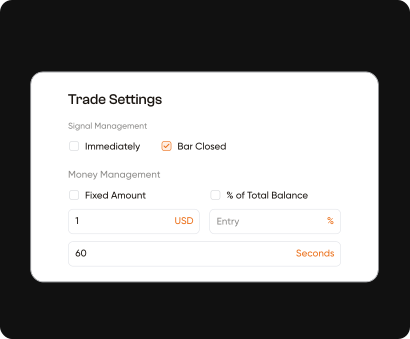
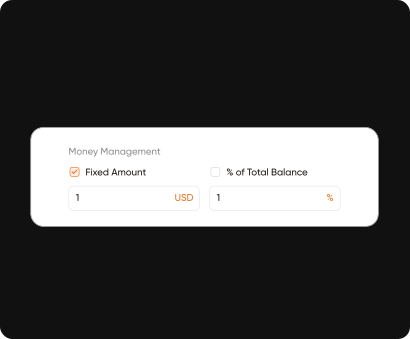
This parameter allows you to set the amount of money invested on each trade, you can choose between 2 types of input:
A specific amount of any desired number
This parameter allows you to set the amount of money invested in percentages of your total balance, as your capital grow the initial entry amount will also grow as well.
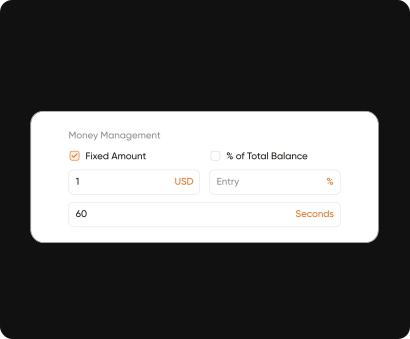
This parameter will allow you to set the temporality of your trades. Here Duration set as Seconds
In the example, the duration expiration is set to “60”. This means that every operation the robot opens will automatically close 60 seconds after.
If you would like major or minor temporalities, just modify this number.
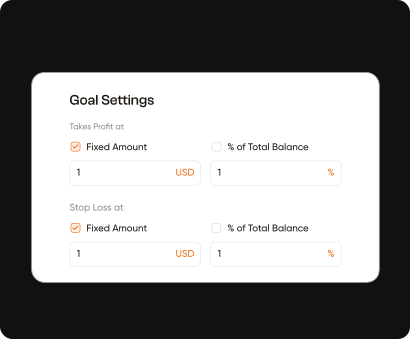
You can set your trading goals for each day or session by defining Take Profit and Stop Loss limits. These settings help manage your risk and secure profits automatically. Once either the profit target or loss limit is reached, the bot will stop trading to prevent further exposure and maintain disciplined trading.
A specific amount of any desired number
This parameter allows you to set the amount of money invested in percentages of your total balance, as your capital grow the initial entry amount will also grow as well.
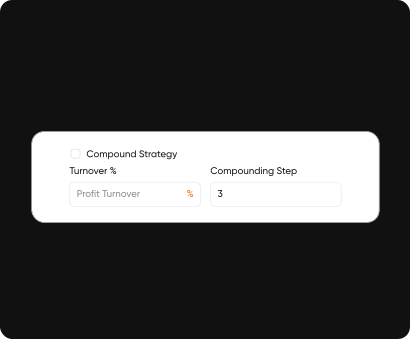
Unlike the standard Martingale, the strategy applies to the won trades. If you win an operation, a new trade will be opened with a greater trade amount by compounding your profits as turnover %.
Will add the input percentage of your profit plus your entry to double your next trade. Example: Your entry trade of $10 end up as winning with $9 profit then your next trade will be $19
This parameter is similar to a Martingale Step but it is only used when you are winning. So you can keep compound your winning profit up to trade on next trade repeatedly based on the step you set.
It applies to lost trades. Once you lose an operation, a new trade will be opened with a greater trade amount (equivalent to the lost trade amount multiplied by a multiplier).
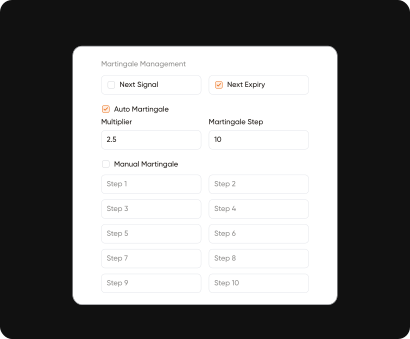
There are two options to apply your martingale:
Martingale will be applied on the next signal. Only executed once the signal is triggered either same currency pairs or any currency pairs.
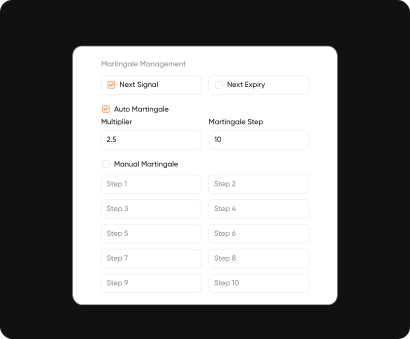
Martingale will be applied immediately after the current trade closes on the same currency pair.
Auto martingale will enable you to set an infinity amount of step to follow your trades and recover your lost.
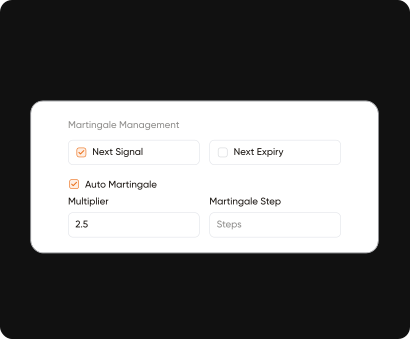
This is the number that will multiply your trade amount on each Martingale step. For each new Martingale step executed, a new trade amount will be calculated (previous step trade amount multiplied by the chosen coefficient)
In the example above, if the trade with an amount of $2 USD results in loss and your Martingale coefficient is 2, it will multiply $2 USD x 2 and the next step of Martingale will be $4 USD.
This parameter defines the number of Martingale steps. If you lose a trade, the first Martingale step will be applied. It will multiply the previous trade amount by the chosen coefficient. In case you lose the first Martingale step, the second step will be applied. If you keep losing, it will keep applying the Martingale strategy until reaching the maximum number of steps you’ve set. If the last step is reached and the trade is lost, the Martingale step counter will reset to zero.
You can use as many steps as you wish, but remember that the greater the number of steps, the greater the risk.
From the “Configuration” section of Trader Frame you’ll be able to customize the amount of each Martingale step, without having to use always the same multiplier.
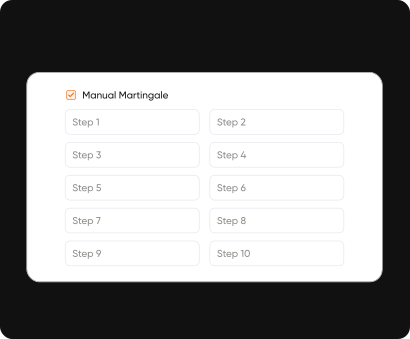
Inside the ‘Configuration’ section we are allowed to set different trading amounts for each step.
Check the ‘Manual Martingale, where we will adjust the trade amount.
The ‘Manual Martingale’ option will be automatically activated. Set the fixed amount of each of the 10 steps of Martingale to personal need.
For each won trade, your broker will pay you a commission. You can define the minimum broker payout percentage.
Example: At a certain time of the day your broker decides to lower the commission for a certain currency pair and this payout percentage is lower than the minimum necessary set by you. Your robot will not execute the trades and will display a message explaining the reason.
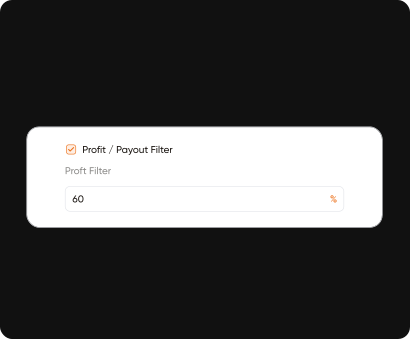
Inside the ‘Configuration’ section we are allowed to set different percentages of commission payout by broker.
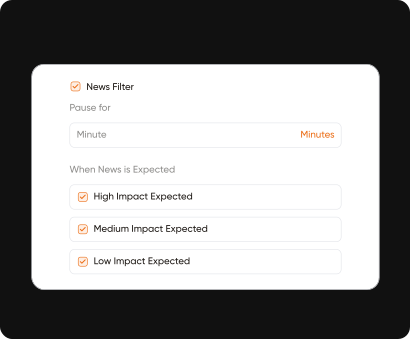
Trader Frame will allow you to set up up economic news and events filters to avoid trading on dangerous market hours, allowing your account to stay safe at all times!
This is the time period before and after an event or news where the bot will momentarily pause the execution of trades.
Refers to the importance of the news and how it impact the markets.
We allow users to filter to pause their trades based on how it is impact in 3 categories:
1. High Impact
2. Medium Impact
3. Low Impact

.webp)




Important Risk Disclaimer for Trader Frame Users

.svg)
REAL-TIME
AUTOMATED
BROKER-VERIFIED
LIGHTNING-FAST
MULTI-BROKER
CODE-FREE
STRATEGY-FIRST
REAL-TIME
AUTOMATED
BROKER-VERIFIED
LIGHTNING-FAST
MULTI-BROKER
CODE-FREE
STRATEGY-FIRST
REAL-TIME
AUTOMATED
BROKER-VERIFIED
LIGHTNING-FAST
MULTI-BROKER
CODE-FREE